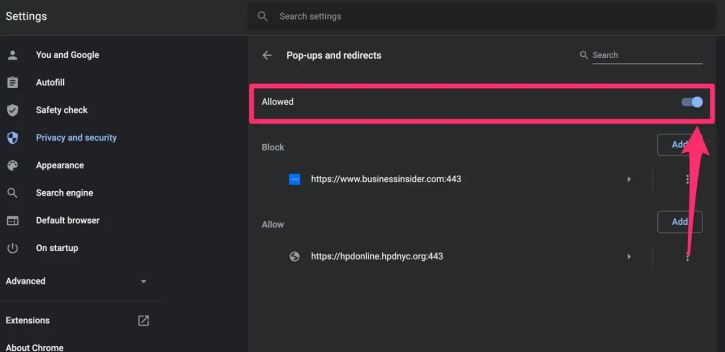
1- Open Chrome Chrome > More > Settings.
2- Click Privacy and security > Site Settings.
3- Find Content module > click Pop-ups and redirects.
4- Active Sites can send pop-ups and use the redirect option.
Find extended help in Google support
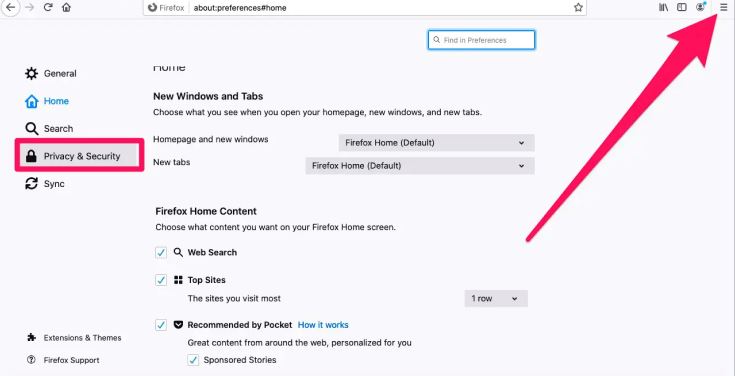
1- Open Mozilla Firefox > Settings > Preferences.
2- Select the Privacy & Security panel > Permissions section.
3- Uncheck the box Block pop-up windows to disable the pop-up blocker altogether.
Find extended help in Google Support
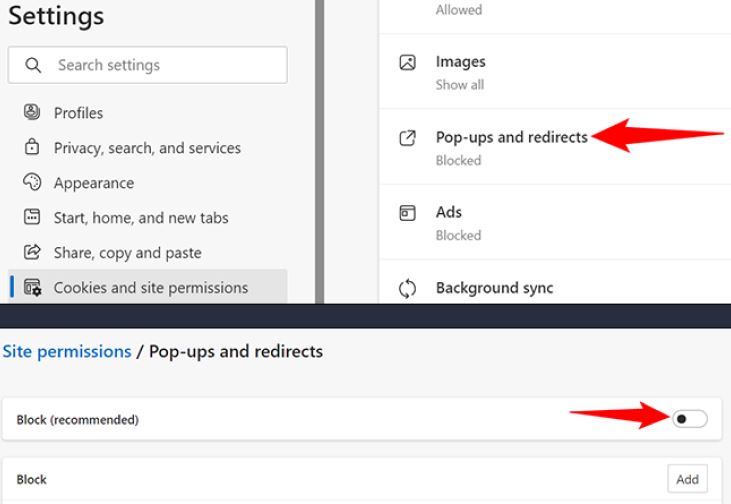
1- Open Edge > Settings > Cookies and site permissions.
2- Under All Permissions > Pop-ups and redirects.
3- Turn off the Block (recommended) toggle
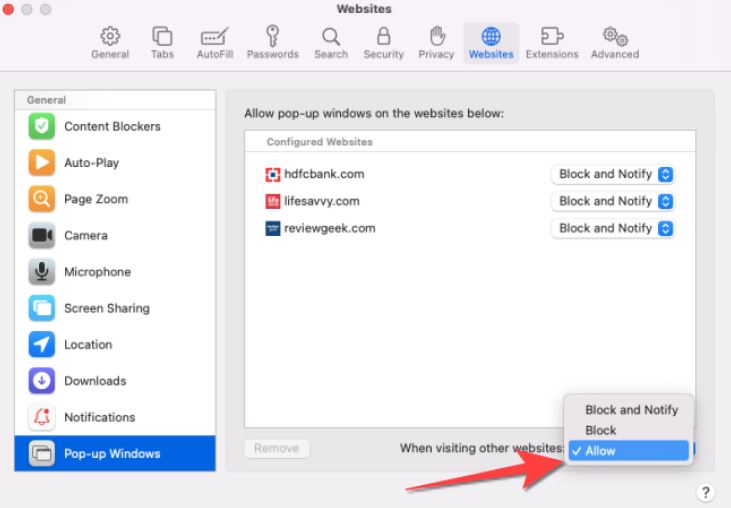
1- Open Safari > Settings > Websites.
2- Click Pop-up Windows on the left.
*If you don’t see Pop-up Windows, be sure to scroll to the bottom of the list.
3- In the pop-up menu for the website, choose: “Allow: Pop-ups for the website appear”.