You can create Groups in the people section.
This will let you create folders to have your candidates/ employees localized and segmented by pools. All people with access to the people section will be able to view the groups created.
How to create a NEW Group:
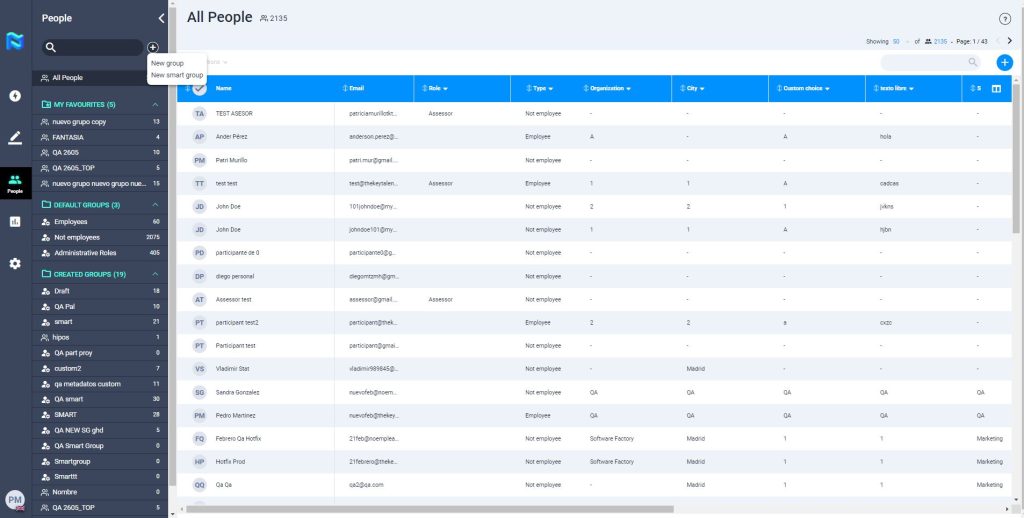
- Click on the + button and click on “New Group
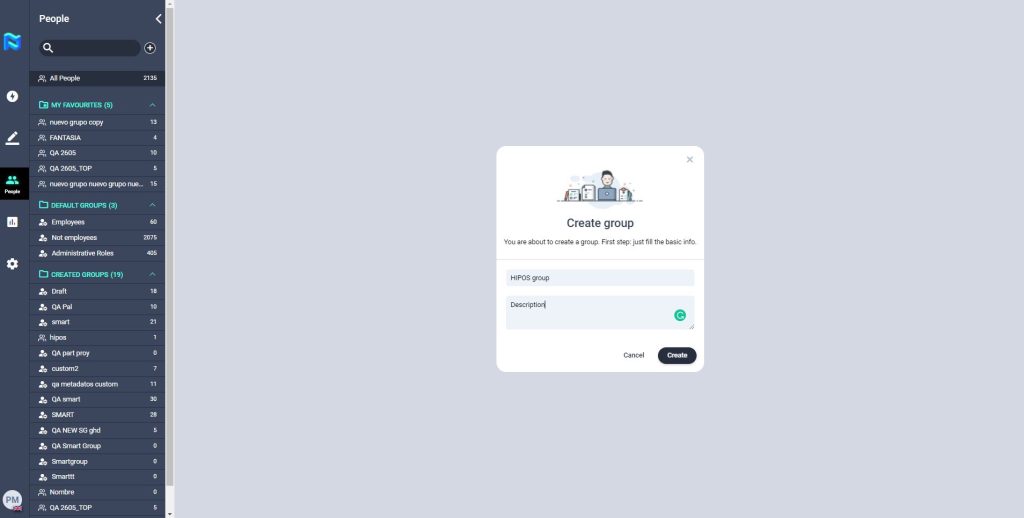
2. A modal will open where you´ll need to include the name of your group and if you wish, a description.
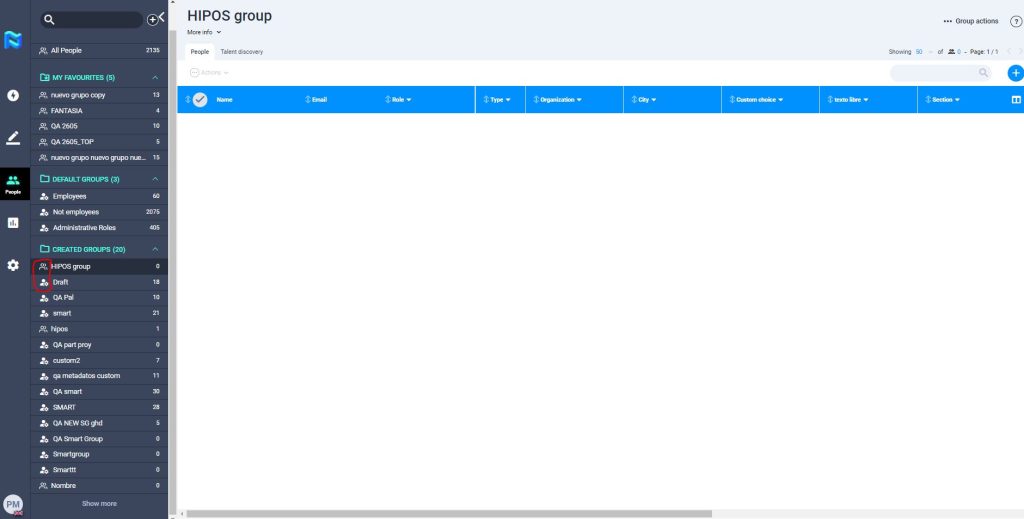
You will see the created group in the sidebar within the “Created Groups” folder.
You can differentiate the groups from the smartgroup by the icon shown to the left of their names.
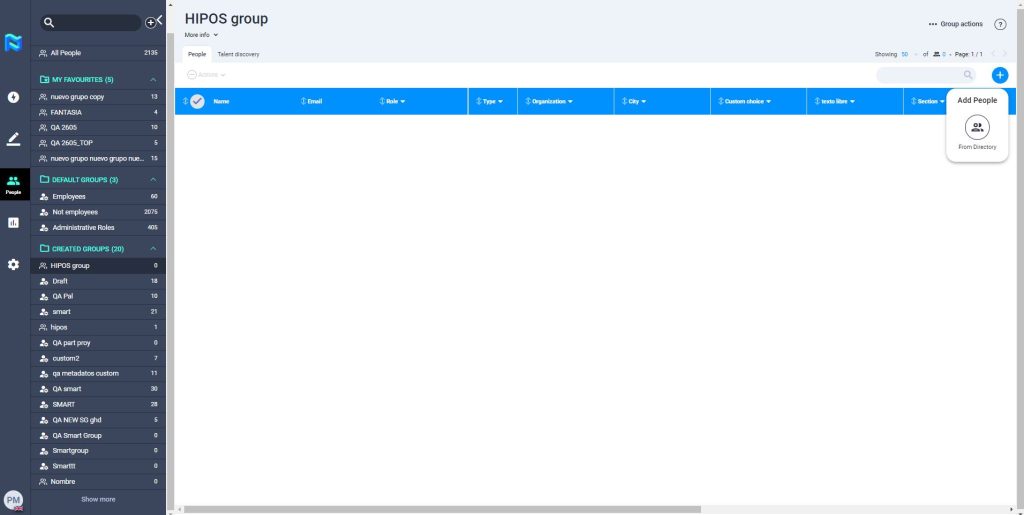
You will be able to add people just from the directory. To find out more about how to do this, check the article “Adding participants”.
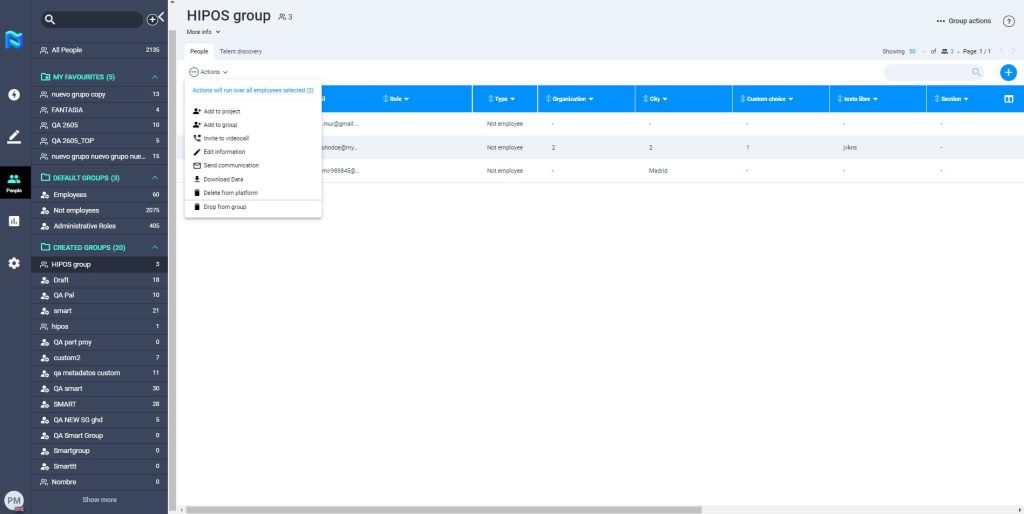
You´ll be able to perform some actions within the people added to the group:
- Add to project: you´ll be able to select the people and add them to the project of your choice.
- Add to group: you´ll be able to select the people and add them to the group of your choice.
- Invite to video call: you can directly call one or up to 6 people directly from a group. Once you invite them to the video call, they will receive an e-mail informing them of your call with a link and pin code to connect.
- Edit information: You can edit the information of the people you have selected (such as the role and metadata)
- Send communication: you can create and send an e-mail to the people selected.
- Download Data: you will be able to download an excel file with the personal data and metadata of the people selected.
- Delete from the platform: if you click they will be deleted from the Panorama account (be aware that all the information of those people will be eliminated from the system and can´t be restored)
- Drop from group: if you click they will be taken out of the group, but their profile will still exist in the directory.
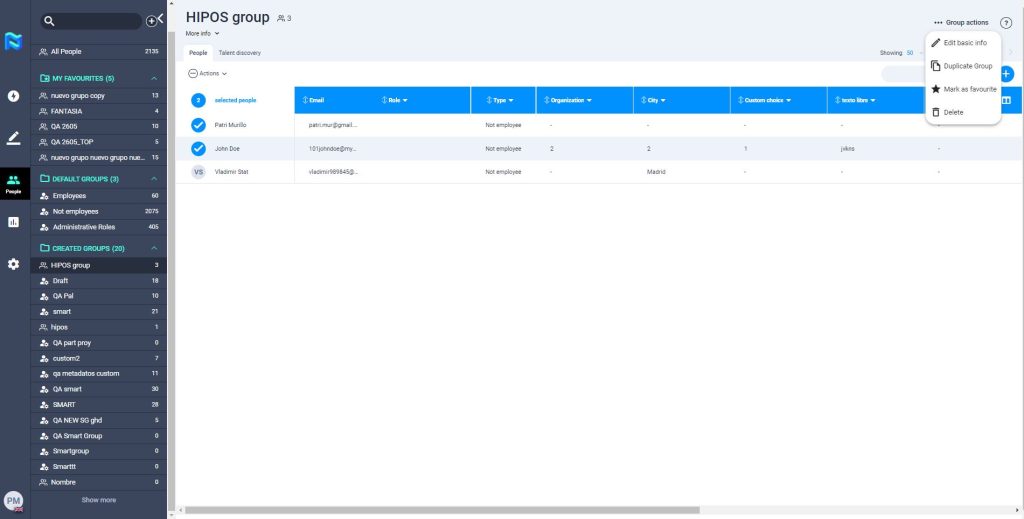
You’ll be able to perform some actions within the group:
- Edit basic info: you can change the name and description of the group.
- Duplicate group: a new group with the same e-mail and the same people will be created.
- Mark as a favourite: you will be able to mark that group as your favourite.
- Delete: if you click the group will be deleted, no other user will be able to see the group and it won´t be possible to be restored afterwards.