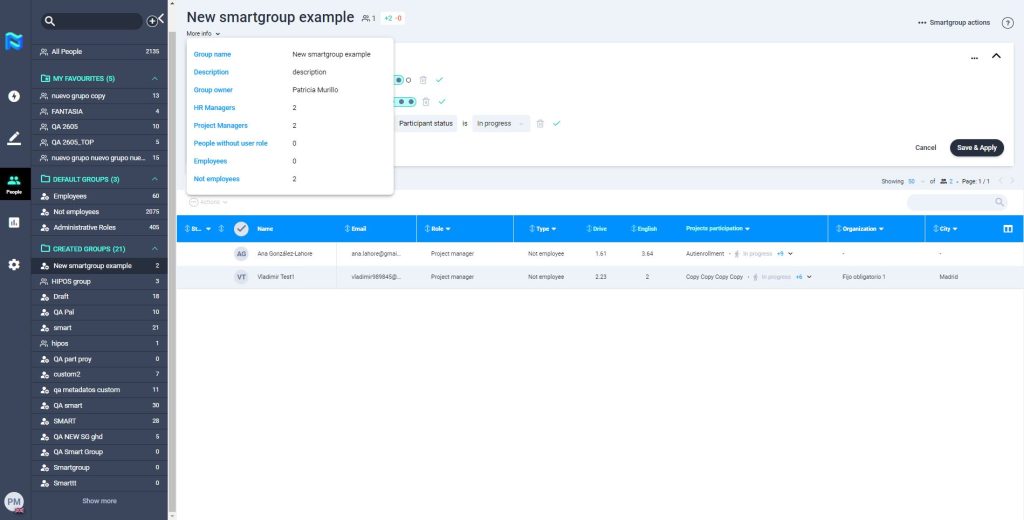
You can create smartgroups in the people section.
A SmartGroup is an intelligent folder that will automatically include the people in Panorama that matches the criteria you have used when configuring the SmartGroup. This will let you have specific pools of people always updated.
This is extremely useful for processes such as:
- Internal mobility of employees
- Upskilling
- Reskilling
- Recruitment needs
How to create a NEW smartgroup:
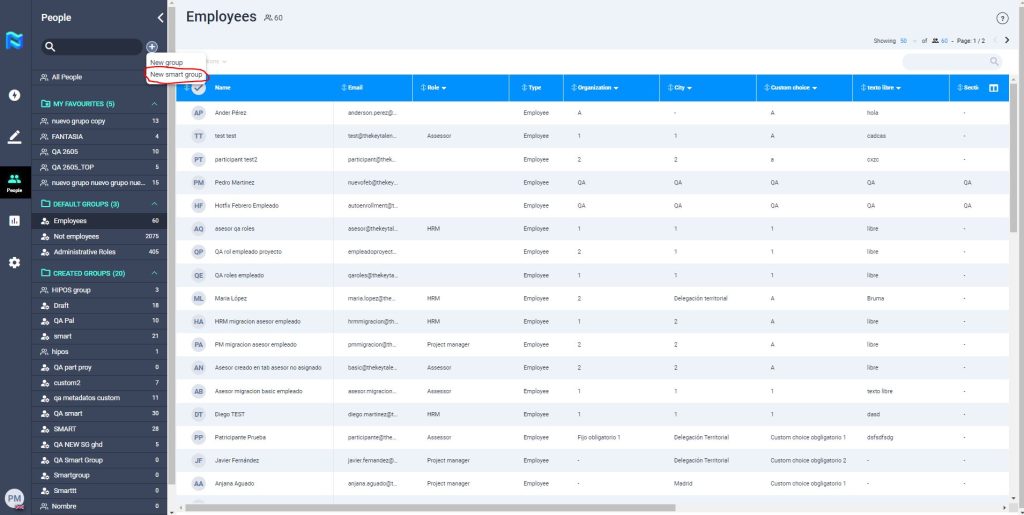
Click on the “+” button and then click on “New smartgroup”
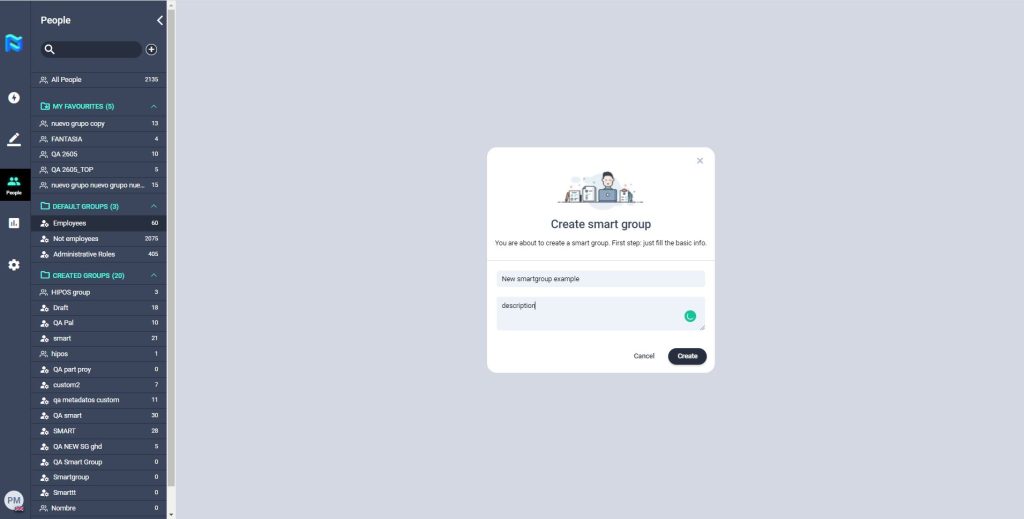
A modal will open where you´ll need to include the name of your smartgroup and if you wish, a description.
You will see the created smartgroup in the sidebar within the “Created Groups” folder.
You can differentiate the smartgroups from the groups by the icon shown to the left of their names.
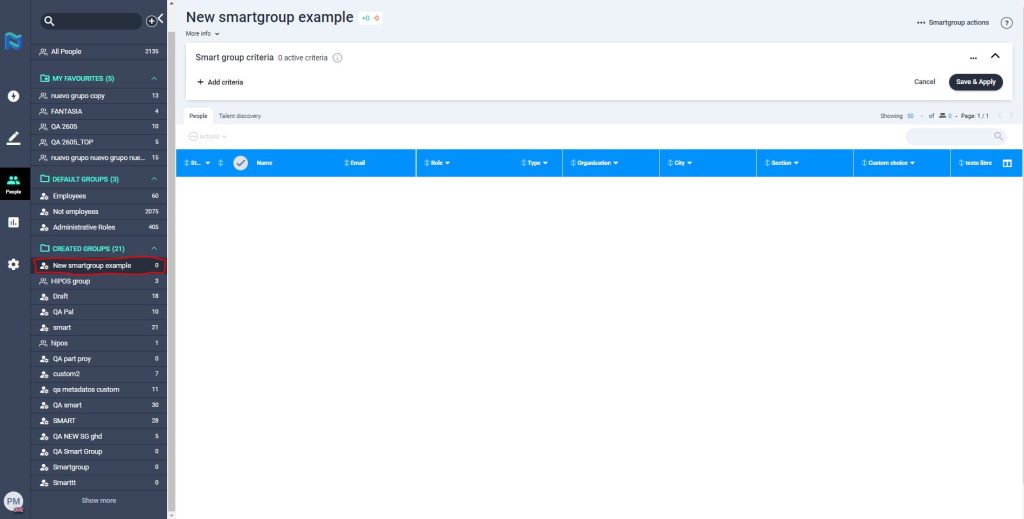
The smartgroups will let you create folders to have your candidates/employees segmented by criteria that is defined previously. You will not be able to add people to a smartgroup manually, this kind of group automatically updates whenever a participant meets the established criteria for that smartgroup.
All people with access to the people section will be able to view the smartgroups created.
To add the criteria that will define that smart group click on “+Add criteria” and select those criteria that you want to be part of your smartgroup.
You can add as criteria the different values included in the assessment data (your own model or Panorama stand-alone model) and the personal data values included in your model.
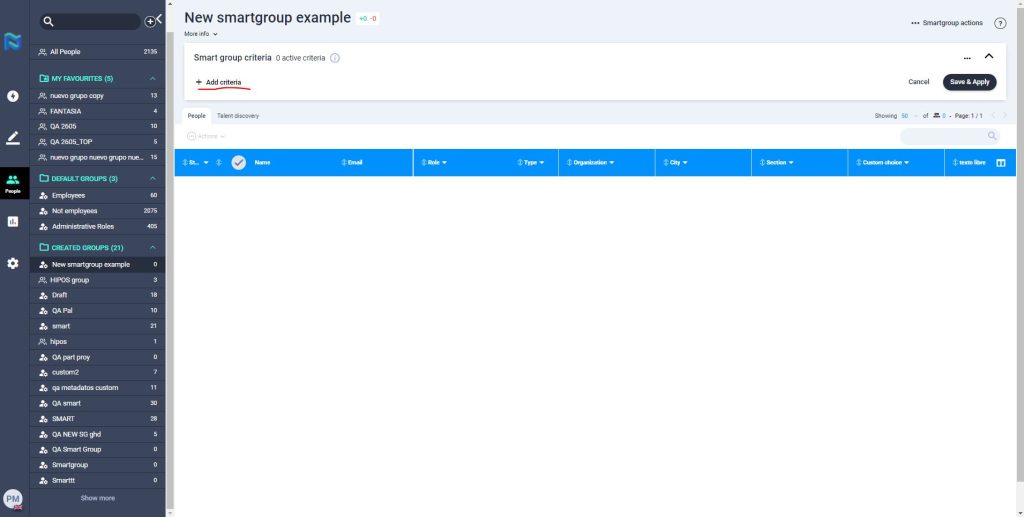
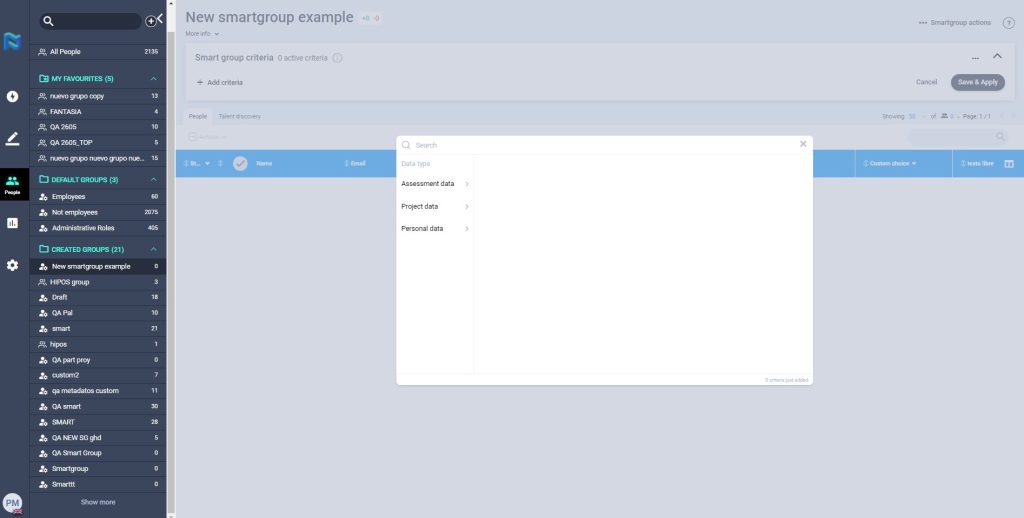
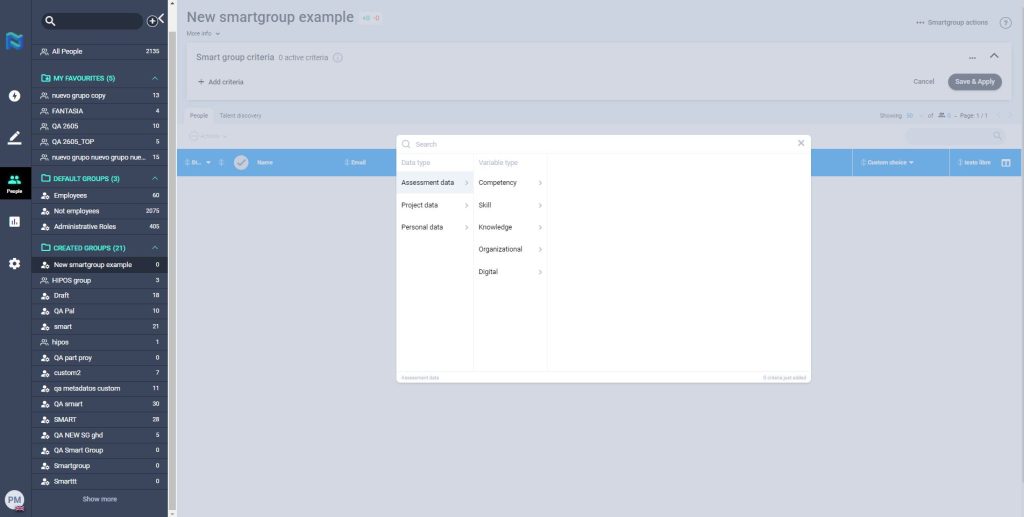
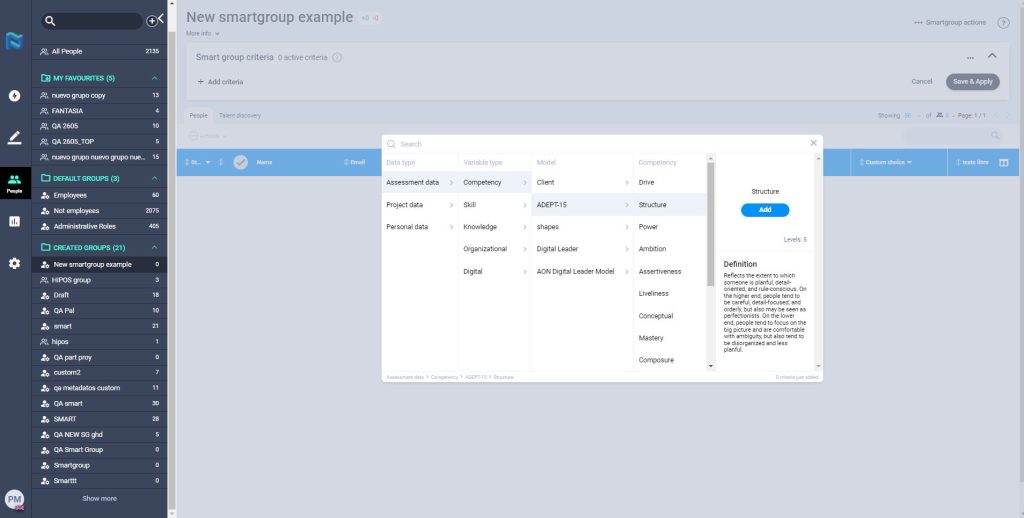
Once the criteria are selected you will have to define the level of the competencies included and the personal data values. Then, click on the “apply” button to save the changes and view the people that match these criteria.
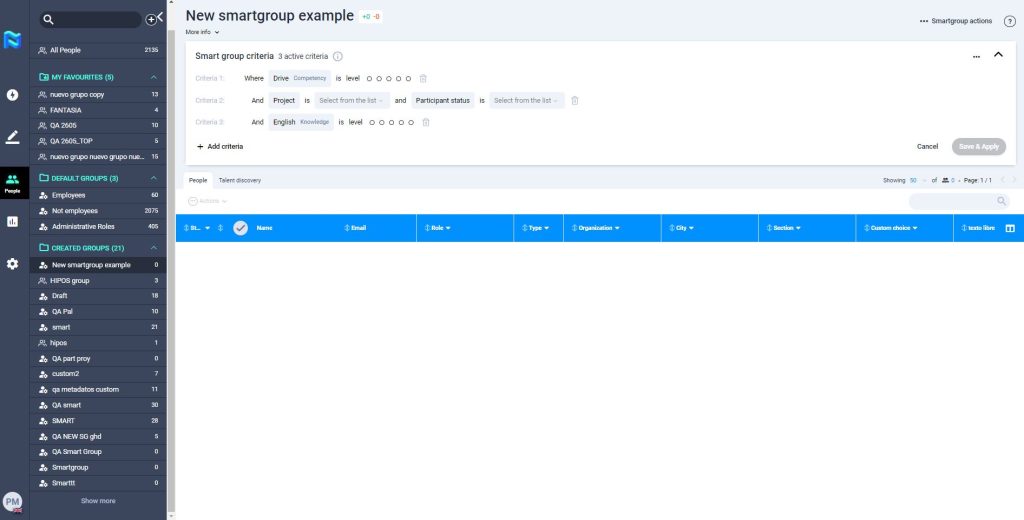
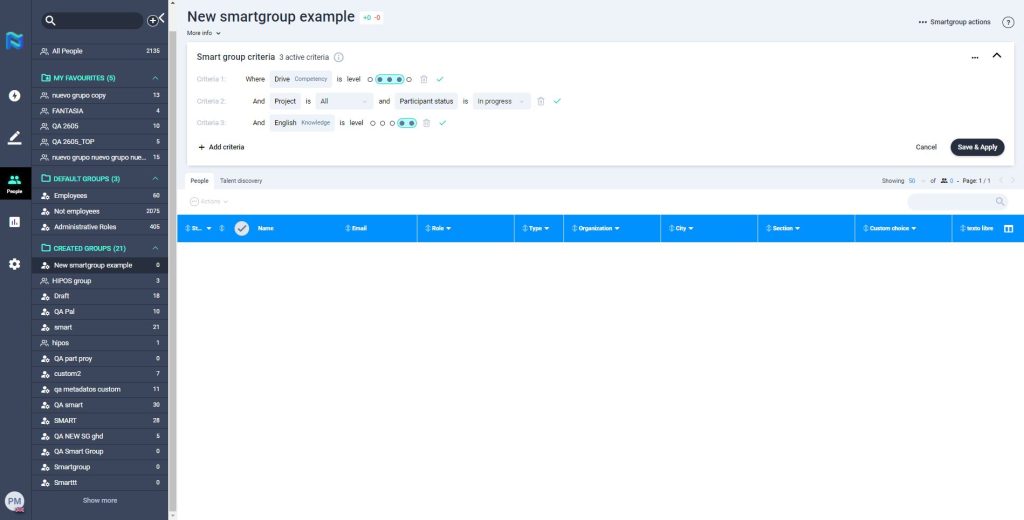
You will automatically see a list of people who meet these criteria in the table of participants. If the table appears empty, it is because there is no one who meets the defined criteria right now.
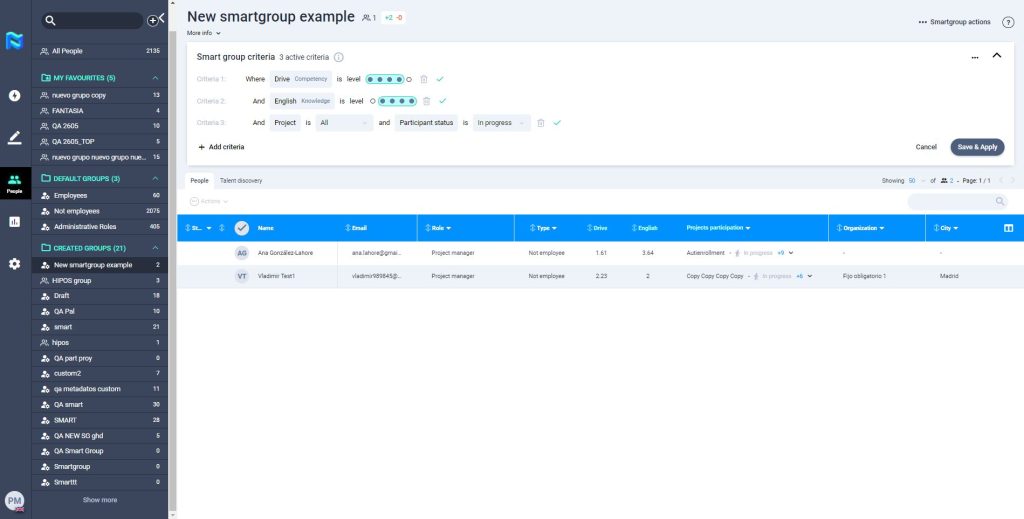
You can edit the criteria included and the levels provided.
You can also eliminate criteria by clicking on the garbage symbol.
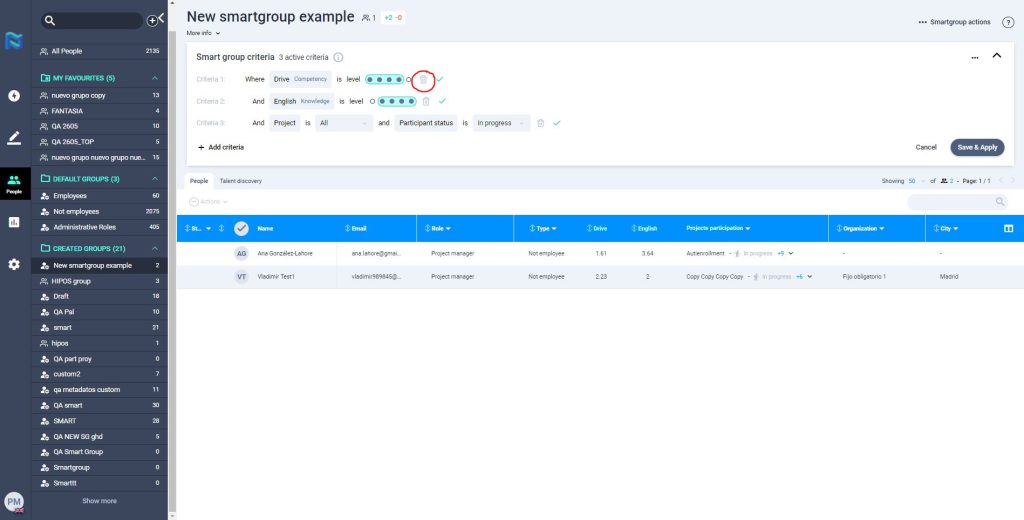
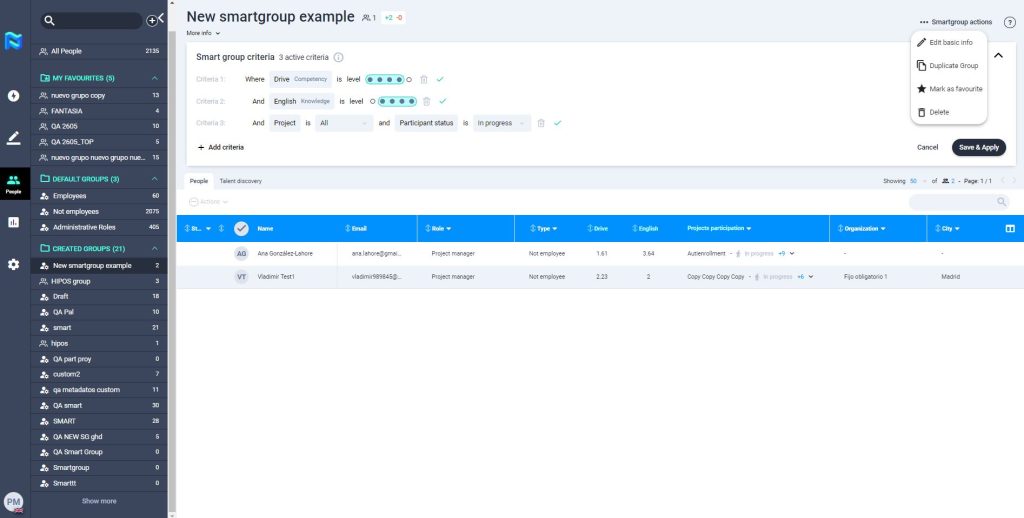
On the top-right of the screen, you can find “Group actions”. To find out more go to the article “Create Groups”.
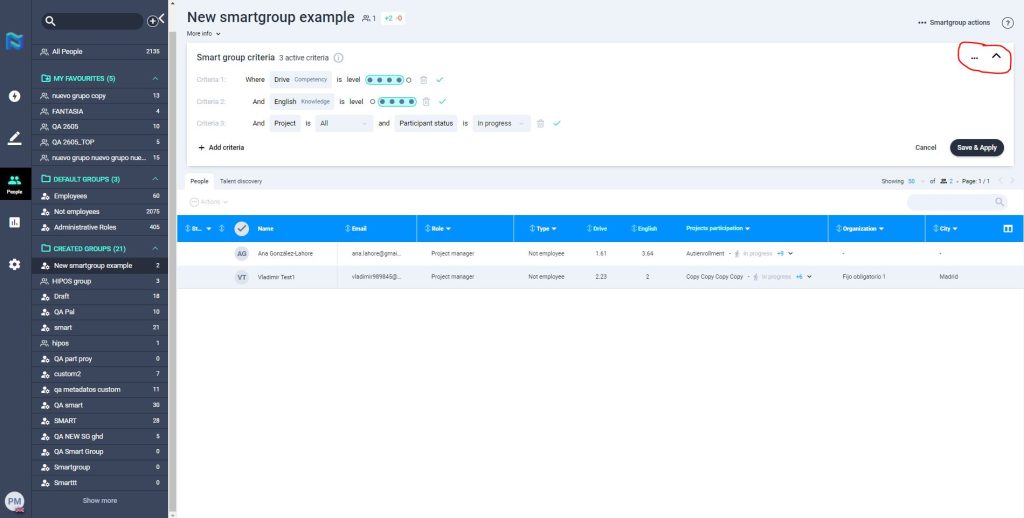
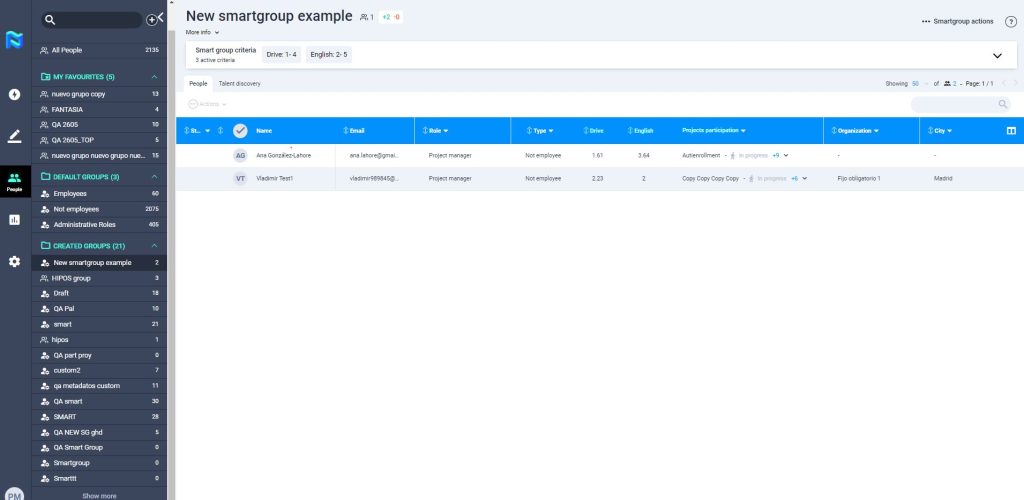
You can minimize the Smartgroup criteria field by clicking on the icon at the top right of the box. Even so, the criteria defined in that smartgroup will be shown.
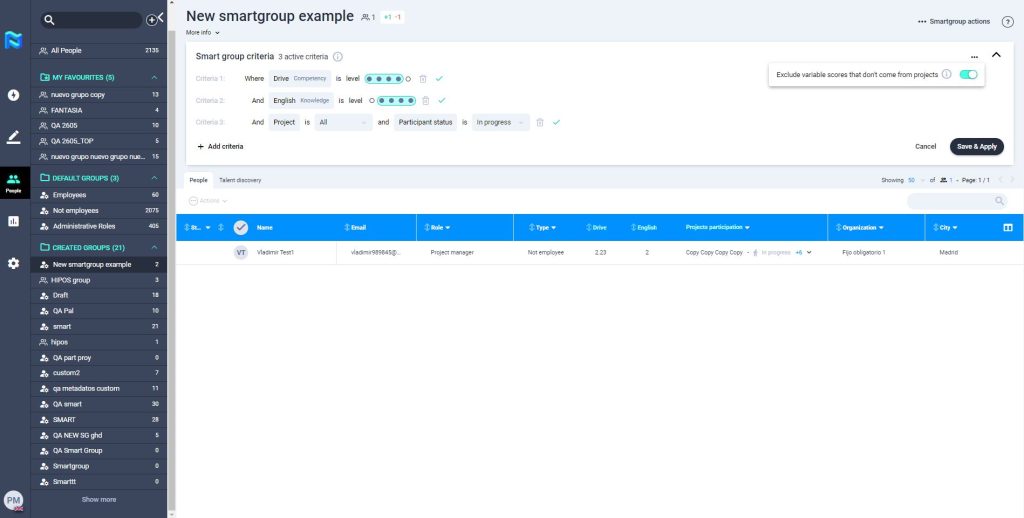
An interesting thing about the SmartGroups is that Panorama will be able to provide you with people that match the criteria even if the variables you have included in the criteria have not been measured yet in a project for those people or the participant has not finished yet the project, as long as those participants have completed a tool with a mapping done to those variables.
You can decide to exclude the variable scores that have not been directly measured in a project by clicking on the 3 points and deactivating the toggle shown in the right image.
In addition, other interesting information available is:
- you will see to the right of the smartgroup name the total number of people that are part of that smartgroup.
- You can find other information related to the group below the smartgroup name. There you can find the “more info” button.
- As many columns as defined criteria will be added to the smartgroup participant table.