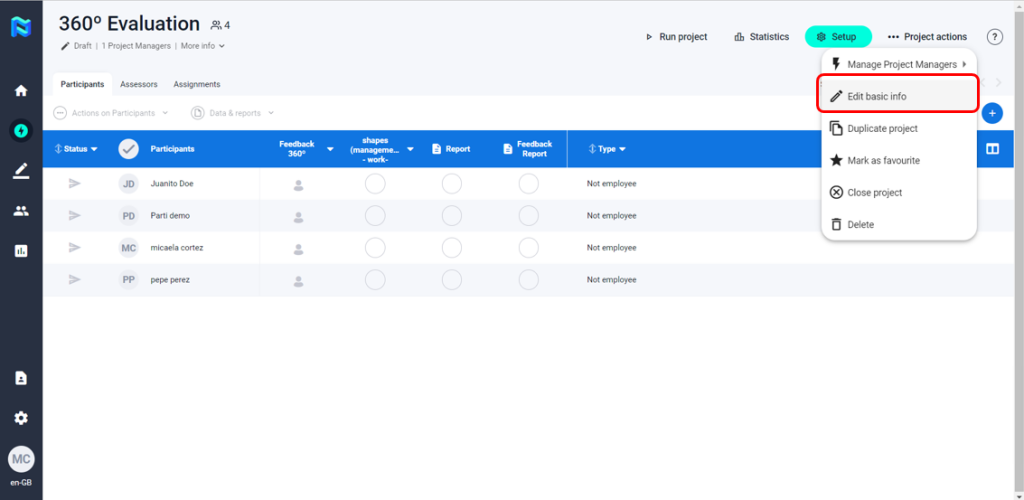
As a Project Manager or HR Manager, you will have several actions at your disposal. To access these actions, go to the upper-right corner and click on “Project Actions”.
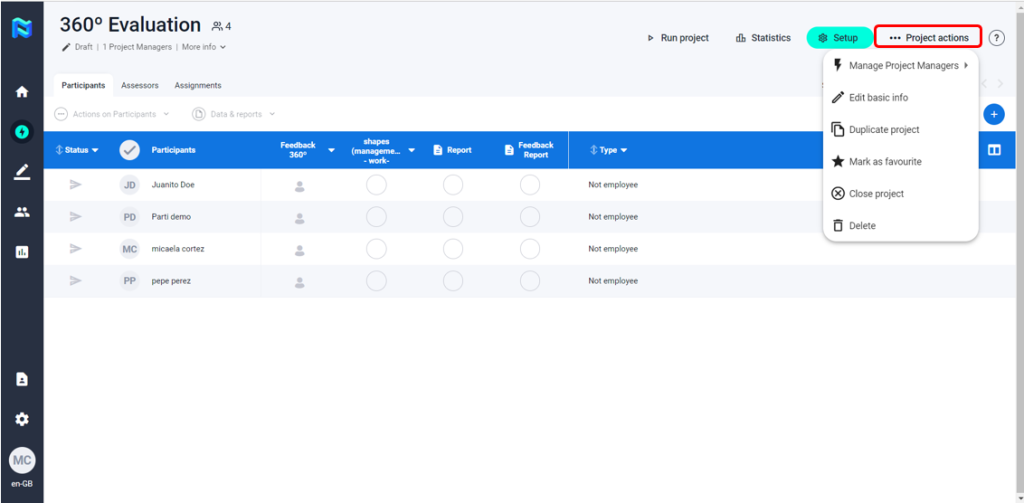
Manage Project Managers
You’ll be able to add other Project Managers to the Project. Remember that these people must already be added to the People Directory before you can add them.
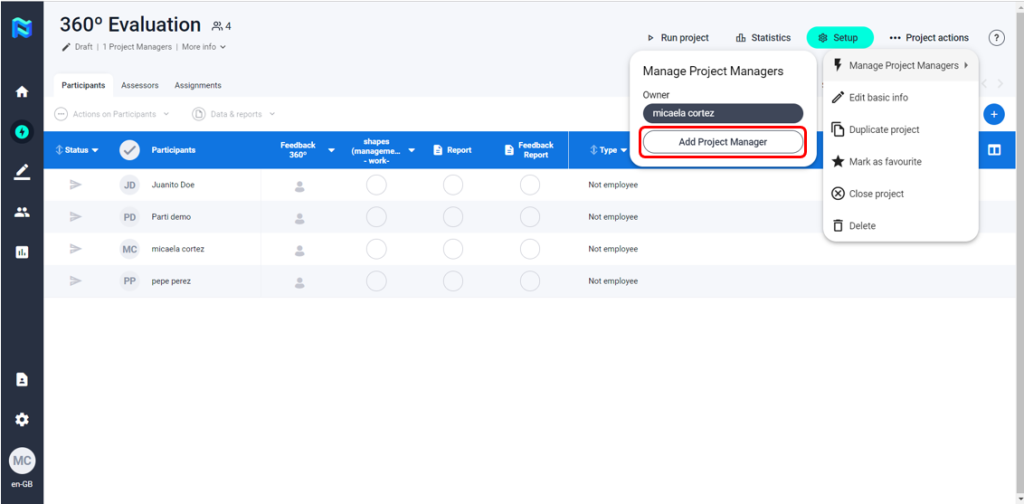
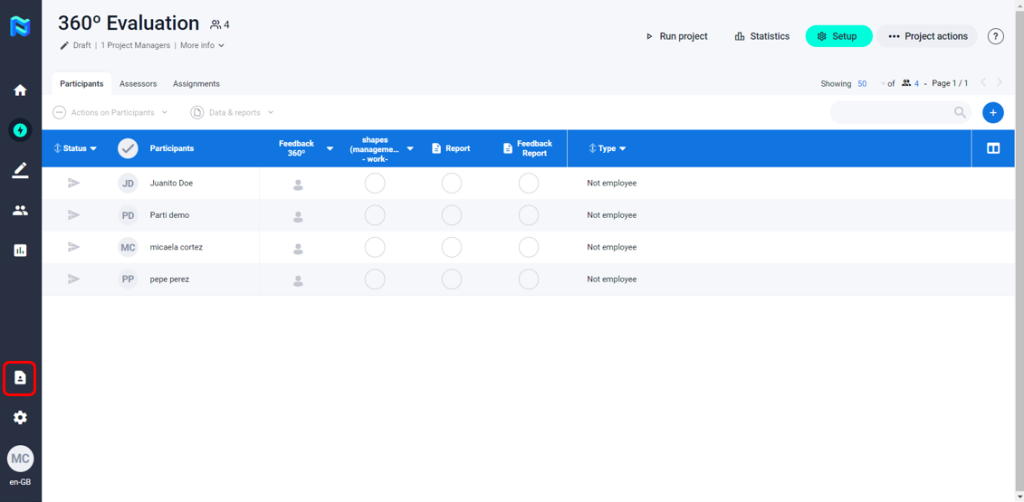
If they have not been previously added, you must go to the to the “Directory” and add them before moving forward.
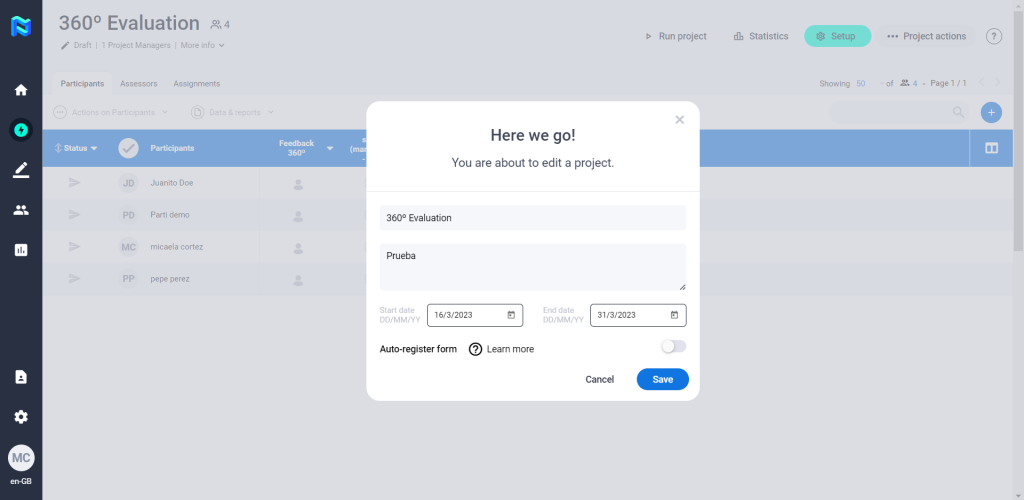
Edit Basic Info
From this section, you’ll be able to edit the basic information of a project, including name, description, start and end date, and activate/deactivate the auto-register form.
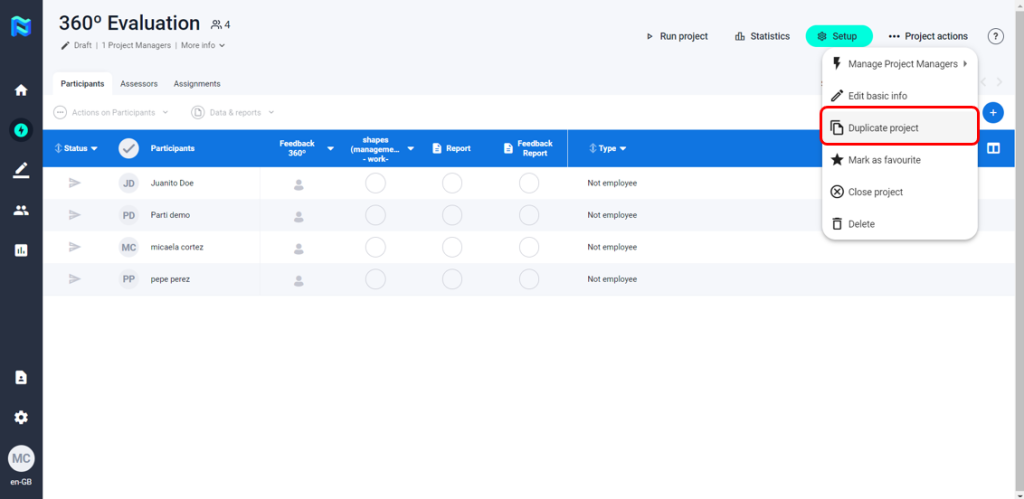
Duplicate Project
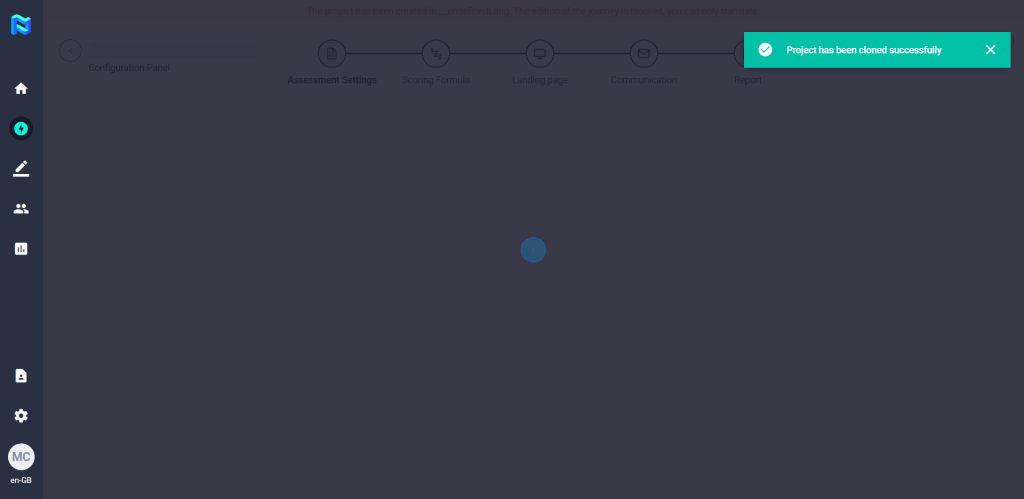
Make a copy of a project to maintain the same format as the original. You will automatically become the Project Manager of this copy version.
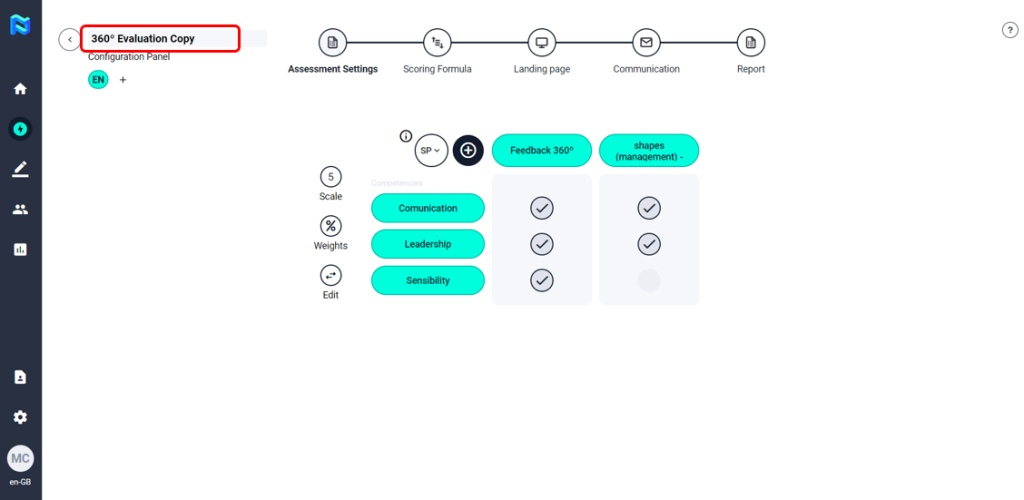
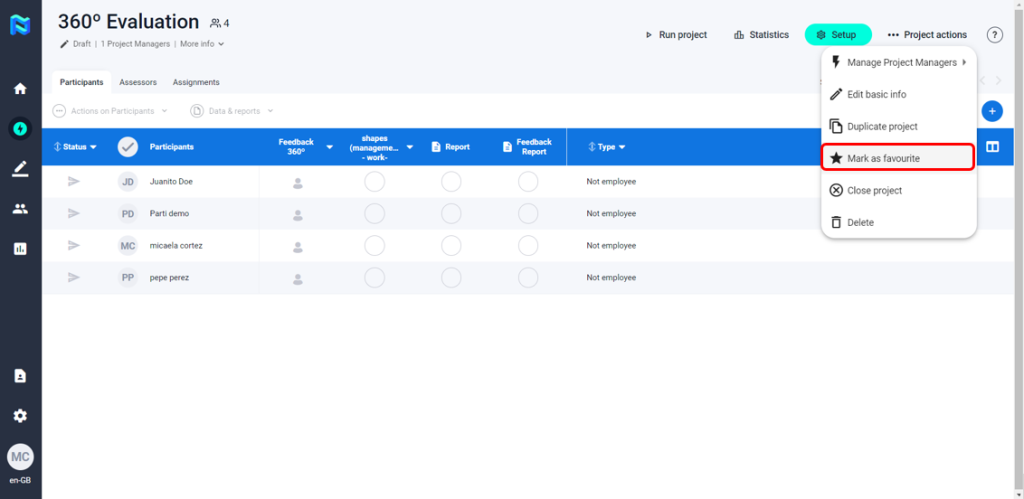
Mark as favourite
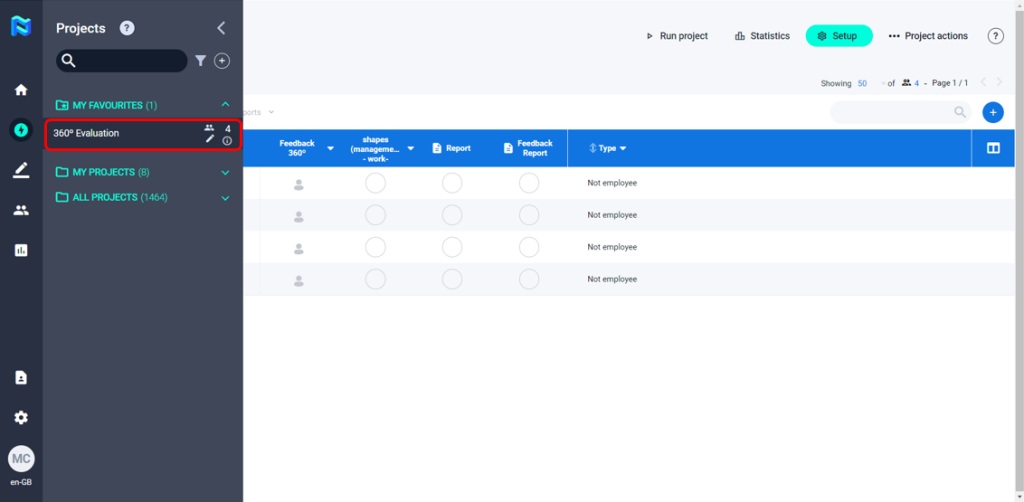
You can mark as favourites those projects you want to follow more closely.
Close Project
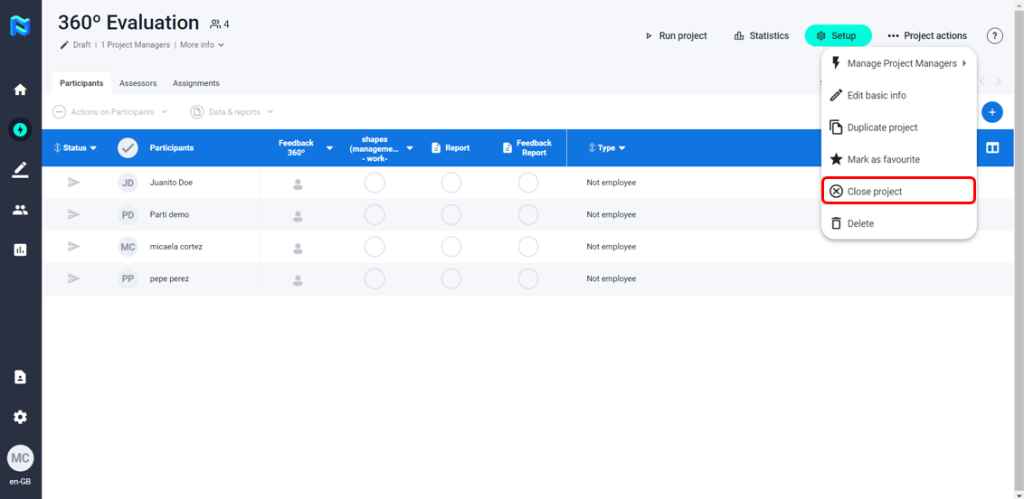
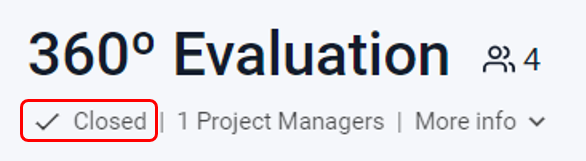
Once a project has been completed, you can close the project. The status will change from In Progress to Closed. Participants will no longer have access to their landing pages, but you will still be able to view the project and participants’ results.
Delete Project
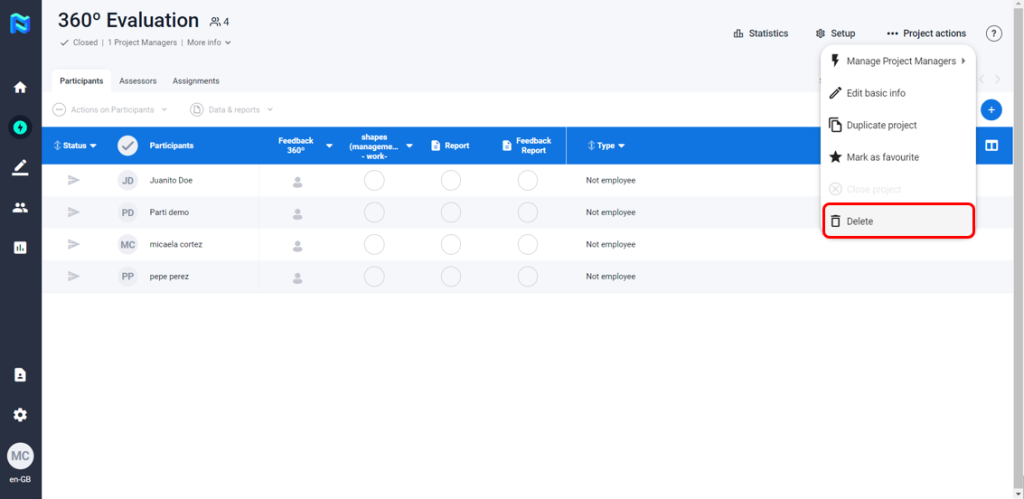
If you would like to erase a project, click on the Delete button from the drop-down menu.
Pause a project
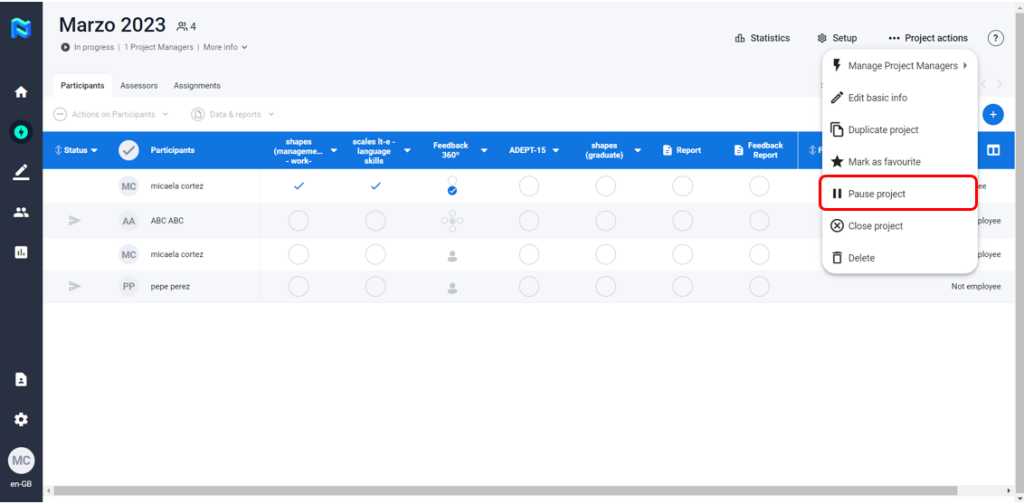
When a project is already running, You can pause it by clicking on “Pause project“.
Pause/resume a phase
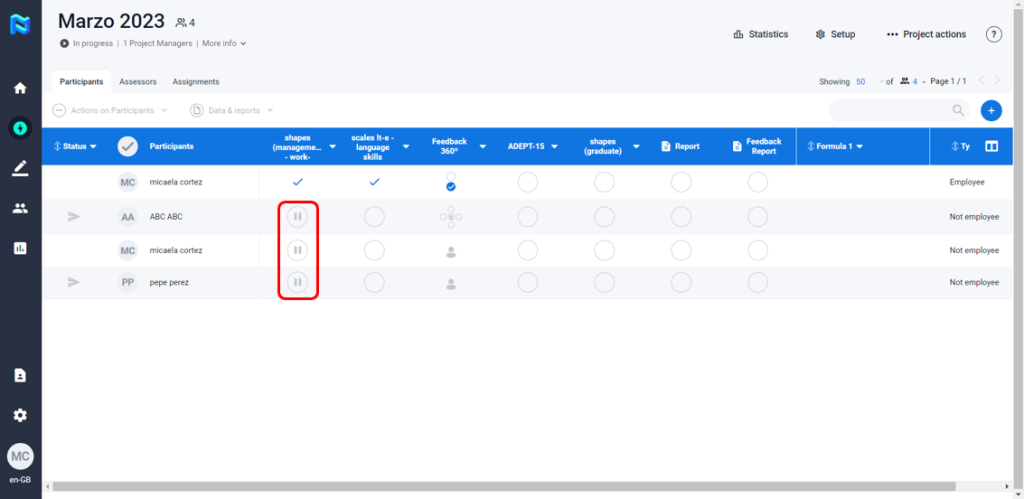
From the participant table, click on the little arrow to the right of the phase that you wish to Pause.
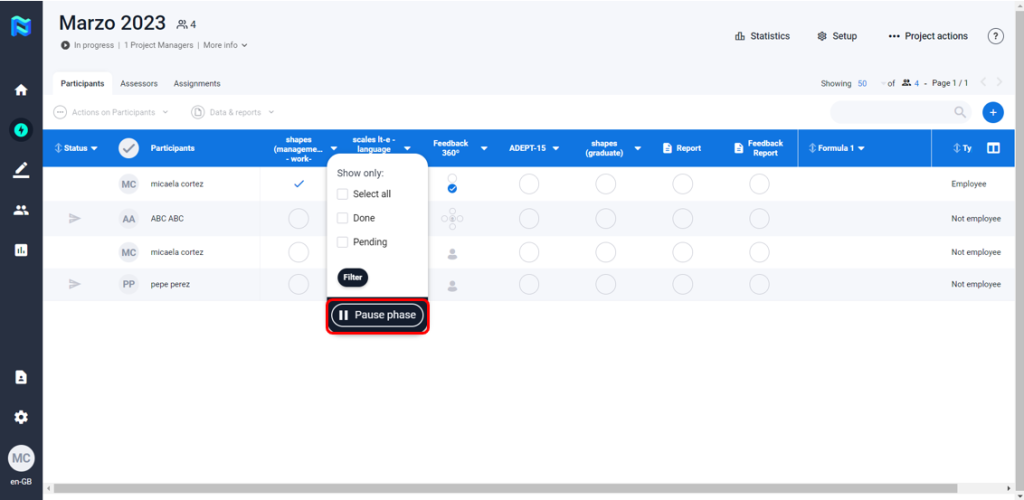
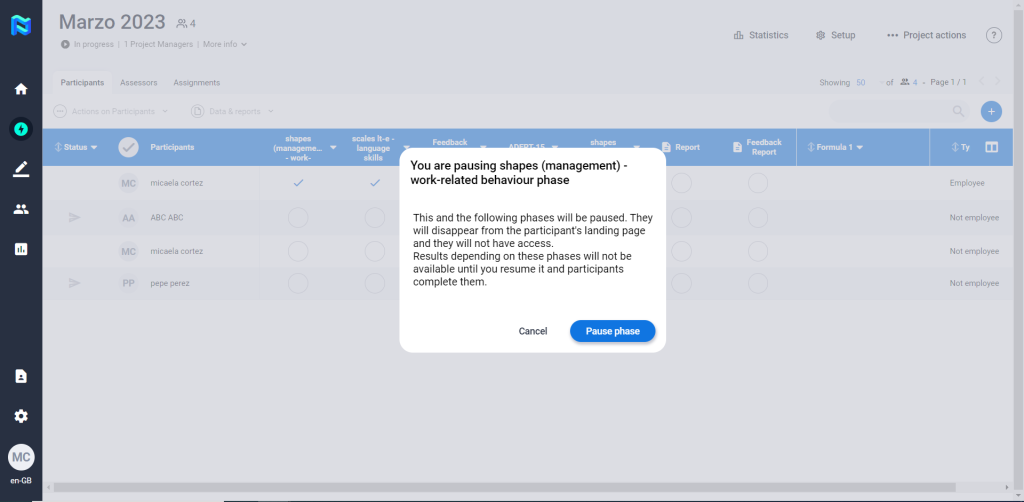
A pause symbol will appear for all participants for that phase. To resume the phase, follow the same steps and click on the Resume phase.