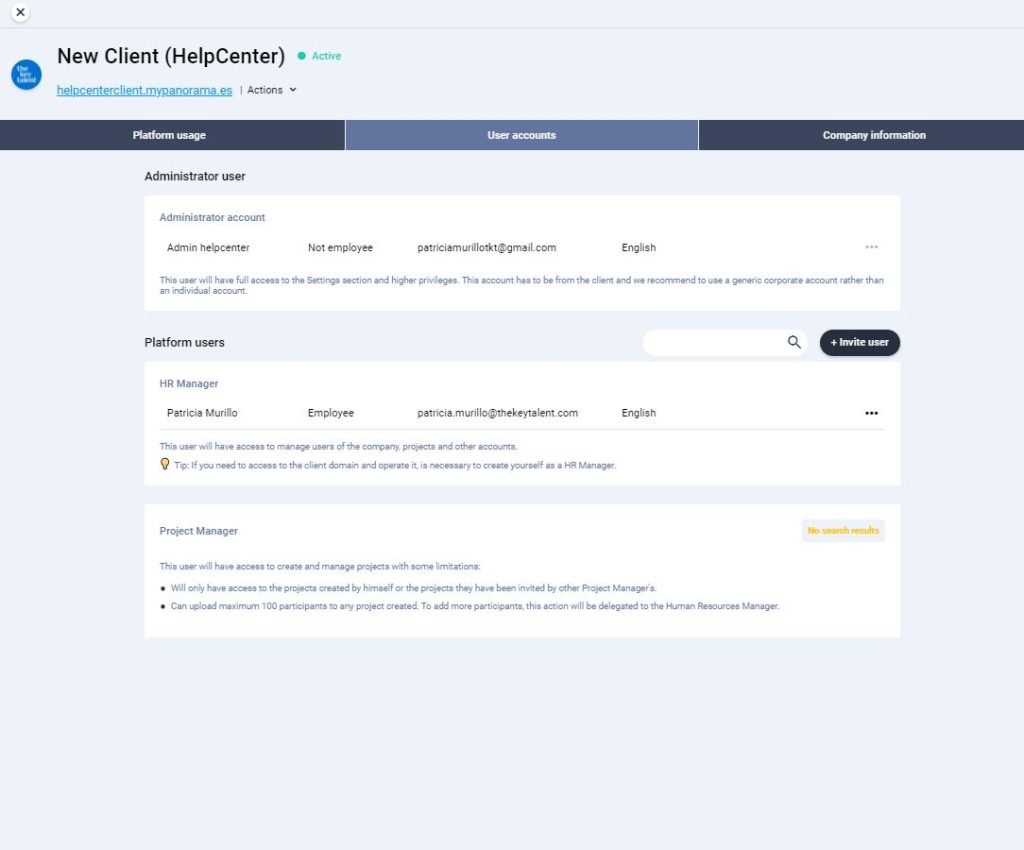
First, you will need to add an Administrator Account (Client Admin)
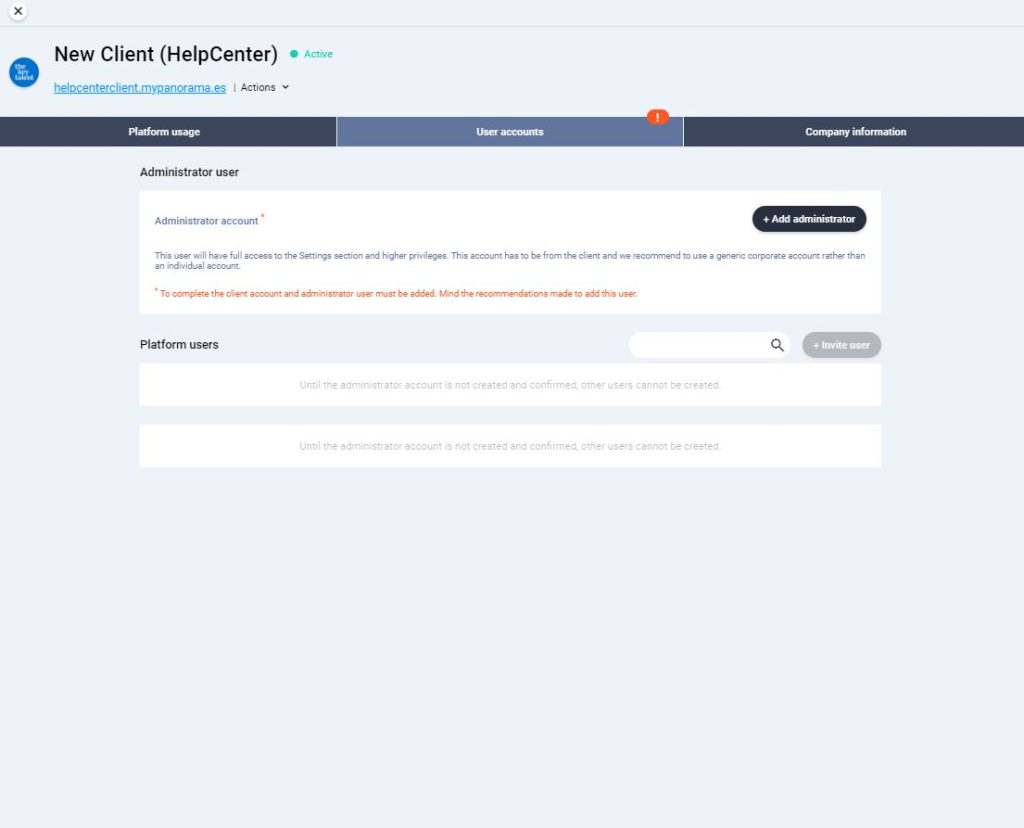
This user will have full access to the Settings section and higher privileges. This account is usually from the client and we recommend using a generic corporate account rather than an individual account. Take into account that until the administrator account is not created and confirmed, other users cannot be created and once the administrator account has been confirmed, it cannot be changed.
In addition, once the account administrator has been created and confirmed, only that person will be able to modify any company information.
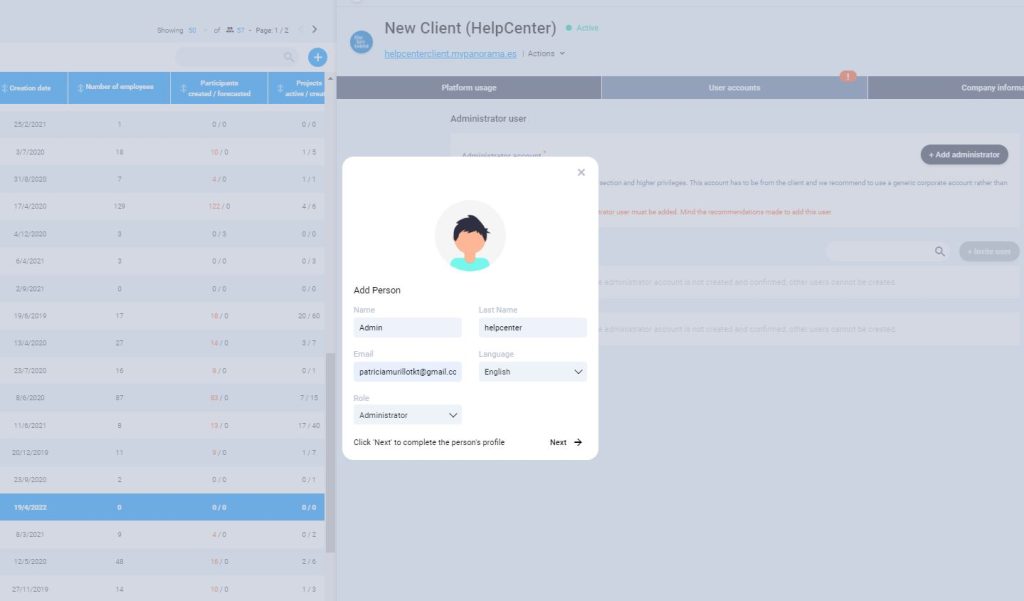
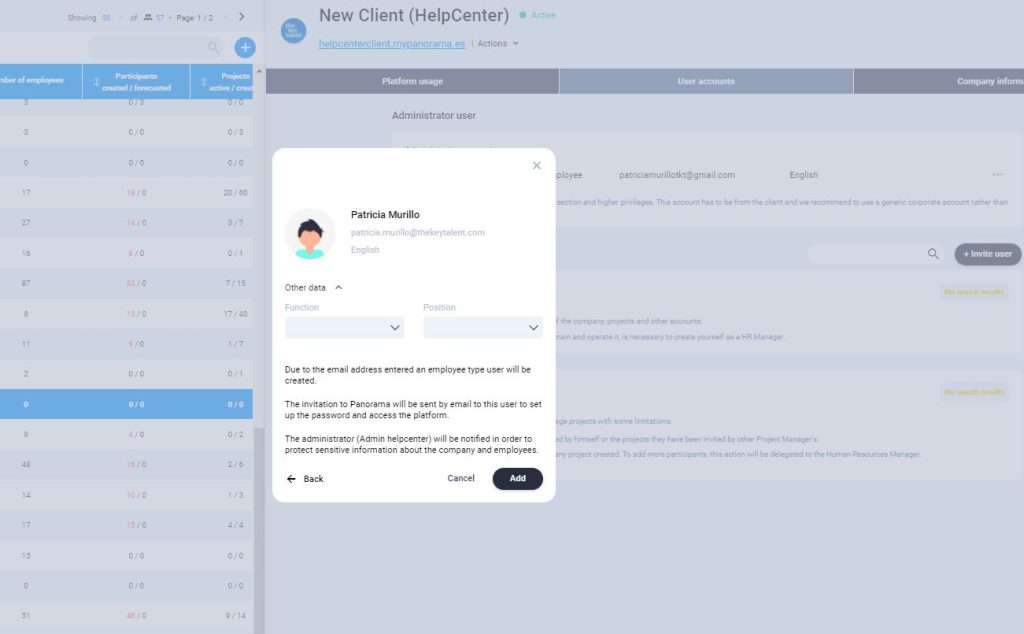
To add the administrator account, click on “+Add administrator” and complete the requested information. Then click on “Next” to complete the person’s profile. You can then add further details about the person if you wish. Then click “Add”.
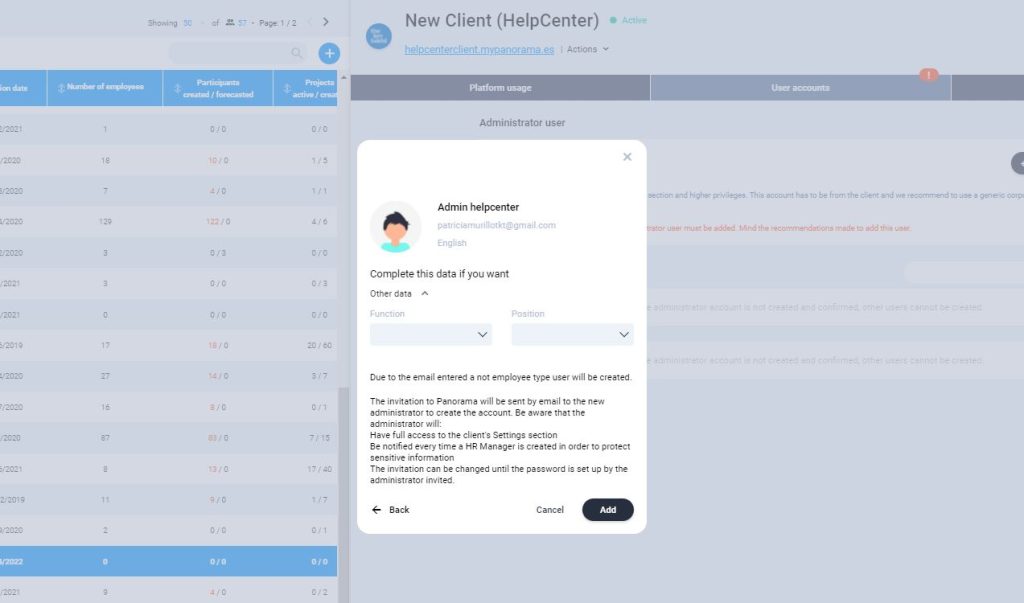
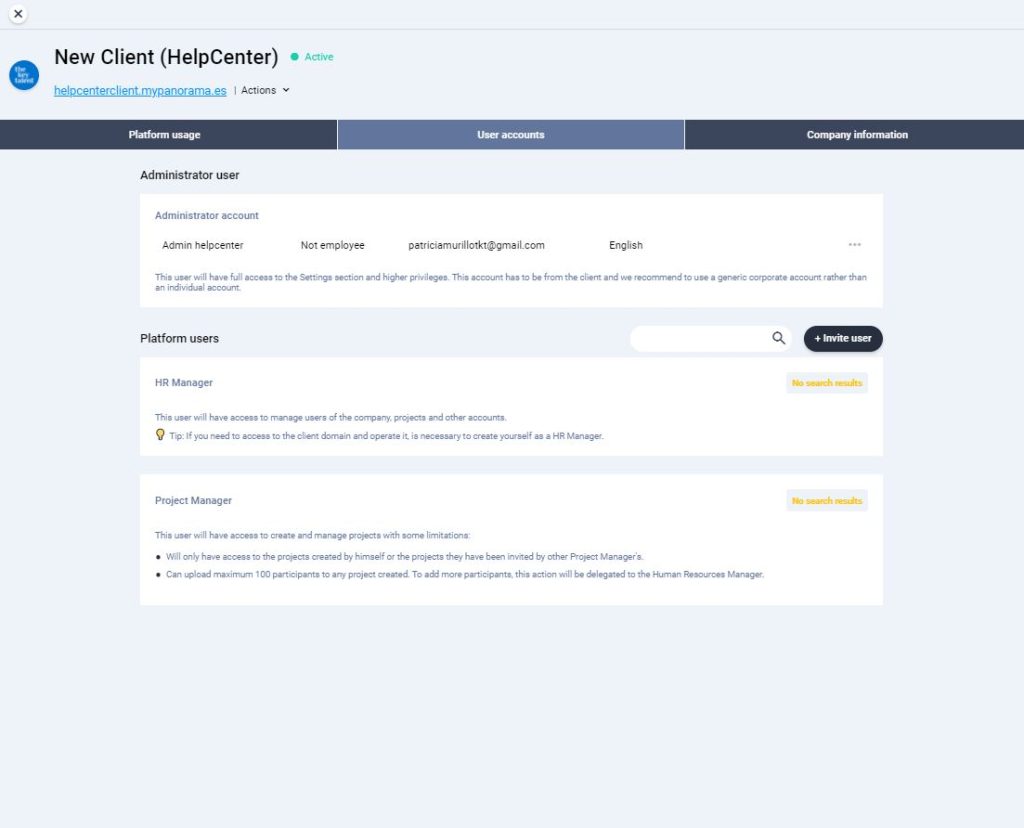
The invitation to Panorama will be sent by email to the new administrator to create the account. Be aware that the administrator will have full access to the client’s Settings section and be notified every time an HR Manager is created in order to protect sensitive information.
This invitation can be changed until the password is set up by the administrator invited.
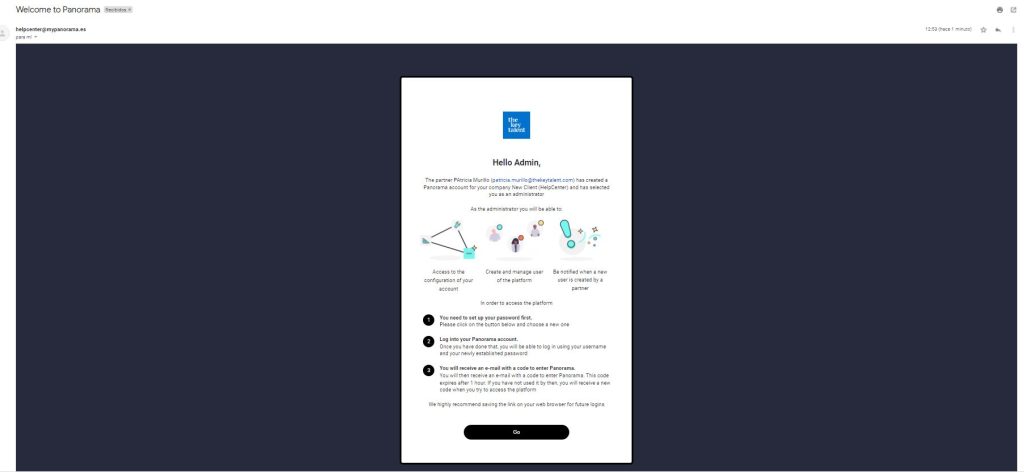
The administrator will receive an email like the one below and only need to follow the instructions in the email to complete creating the Panorama account login.
Once the administrator account is created and confirmed, you can add other users.
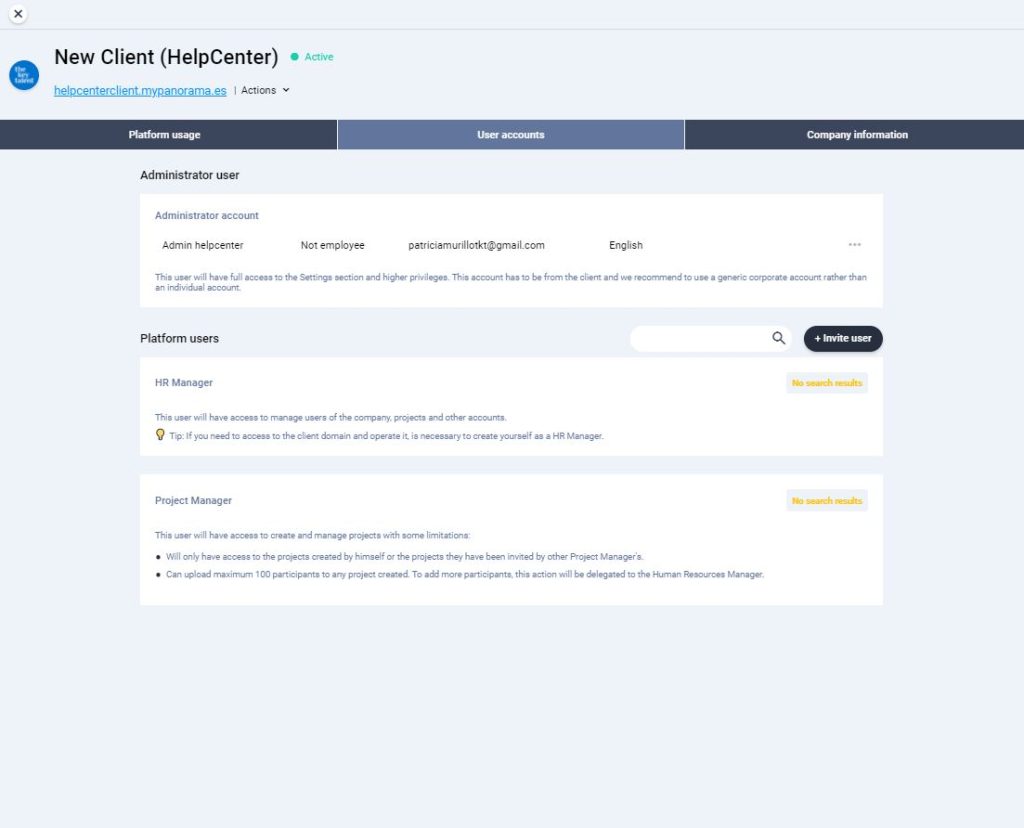
You can add HR Managers or Project Managers. If you would like to learn more about the types of users you can find on Panorama, please check the ROLES article.
To add users, click on “+Invite user”.
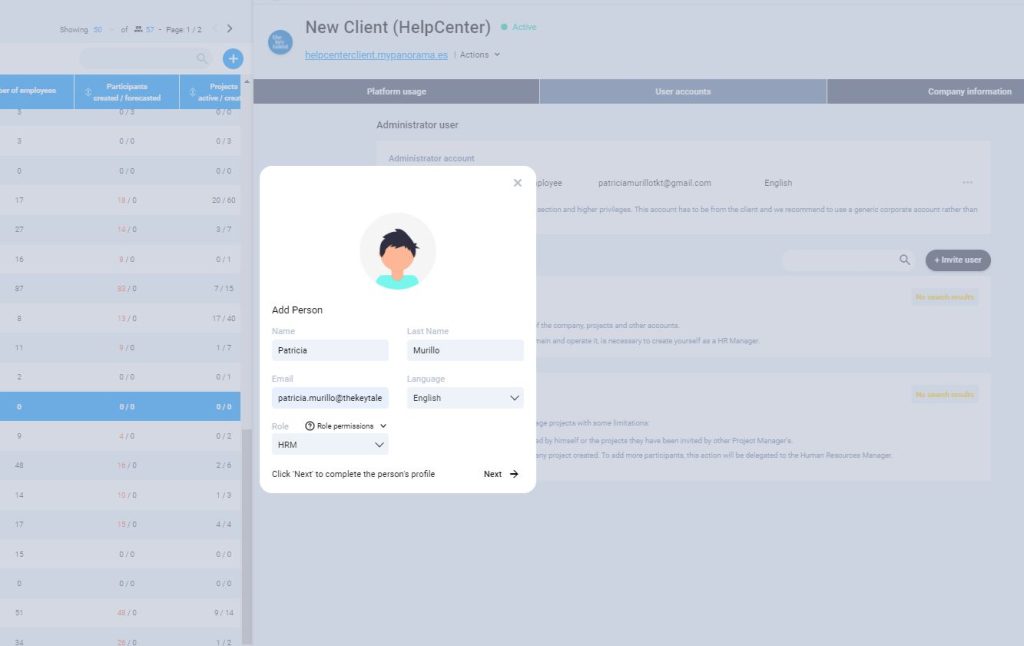
Then fill in that person’s information and click “Next”. If you wish, add additional information and then click “Add”.
As you add HR Managers or Project Managers, you will see a list of them on the screen.