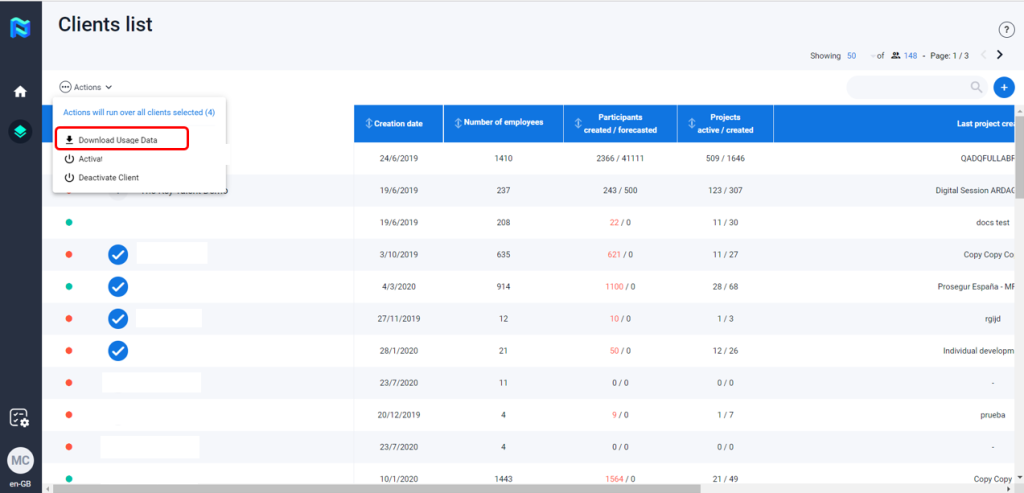
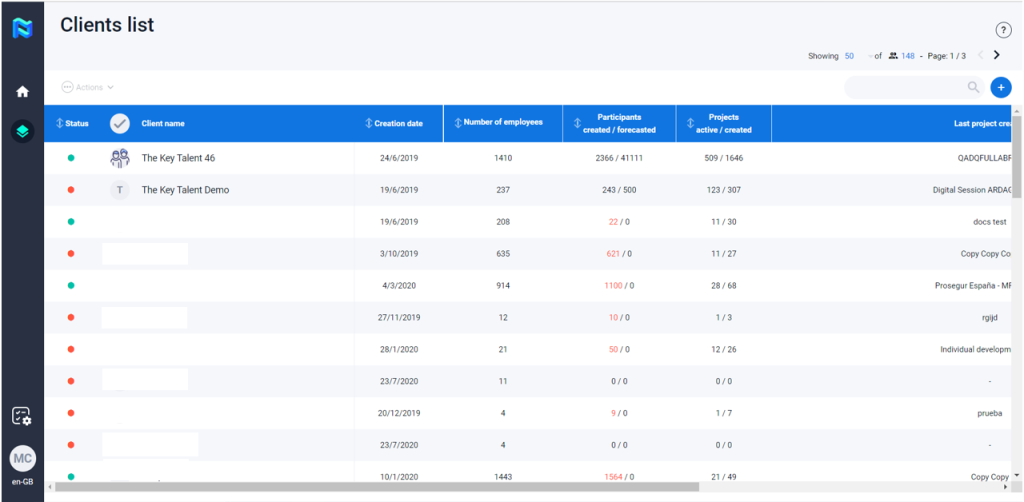
From the Partner area, you can manage all your clients. Here, you will find the list of clients created in your partner area, and here you can check the following data:
- Creation date: This is the date on which the client was created on the platform.
- The number of employees: Number of people with corporate mail who have been included in the platform.
- Participants created/forecasted: Number of people who are participating in a project within that client vs forecasted participants.
- Projects active/created: Number of projects currently active vs. projects created.
- The last project created: Name of the most recently created project.
- Last project date: Date of creation of the most recent project.
- Associated partner: Name of the person who created this client.
In addition, you can perform different actions. To do this, select the client(s) you want to perform the actions on and click on the “Actions” button at the top left of the client table.
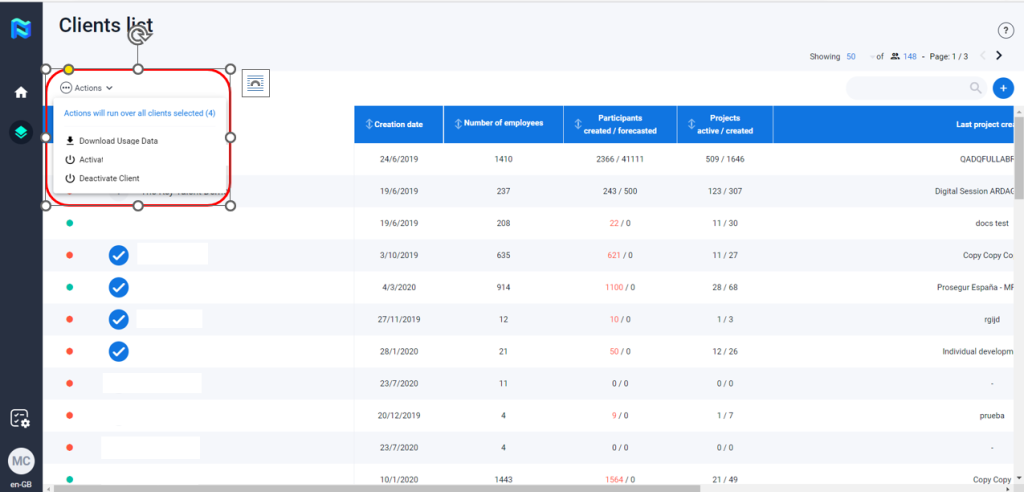
You can activate/deactivate clients by clicking on the desired action. When you deactivate a client, you will see a red circle appear to the left of the client’s name and in addition:
- The client domain will be deactivated
- All projects related to the client will be closed
- Participants and users will not have access to the platform or sites related to it
When you activate a client that was deactivated:
- All projects, independent of their previous status, will be paused.
- Participants and users will have access to the platform or sites related to it.
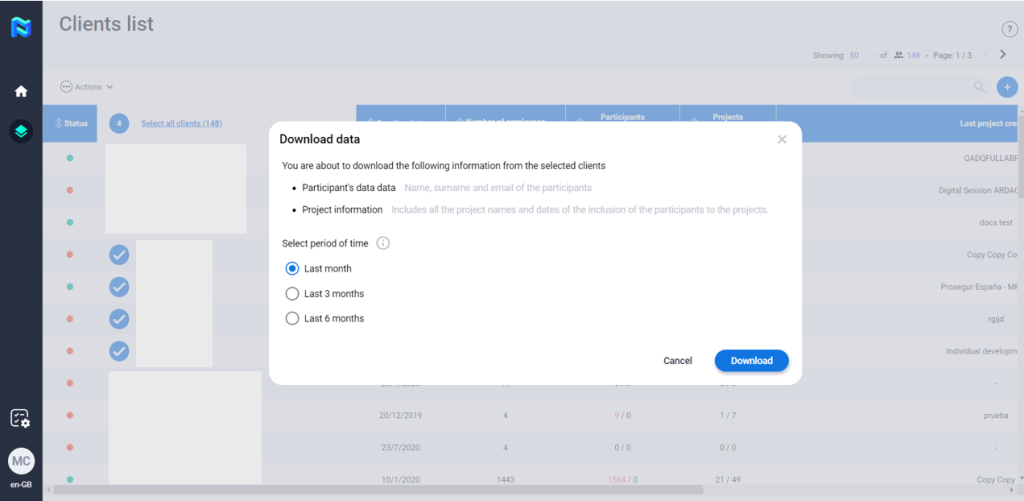
In addition to this, you can download the usage data of the client. To do this, select the client and click on Actions and then on “Download usage data”. Select the period of time you want to download and click on “Download”.