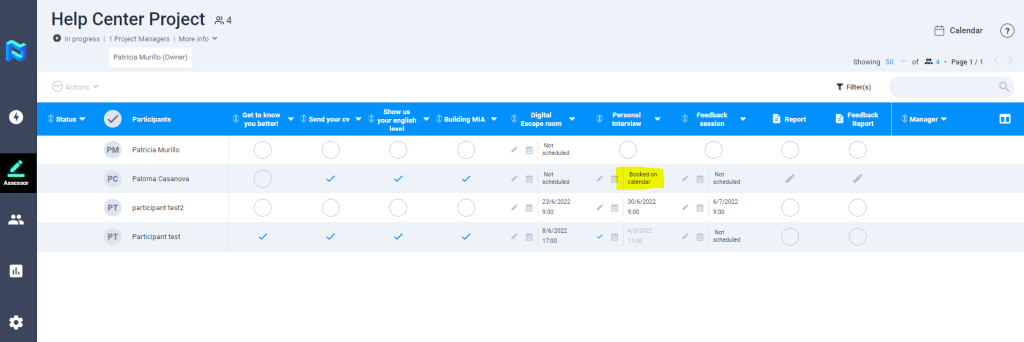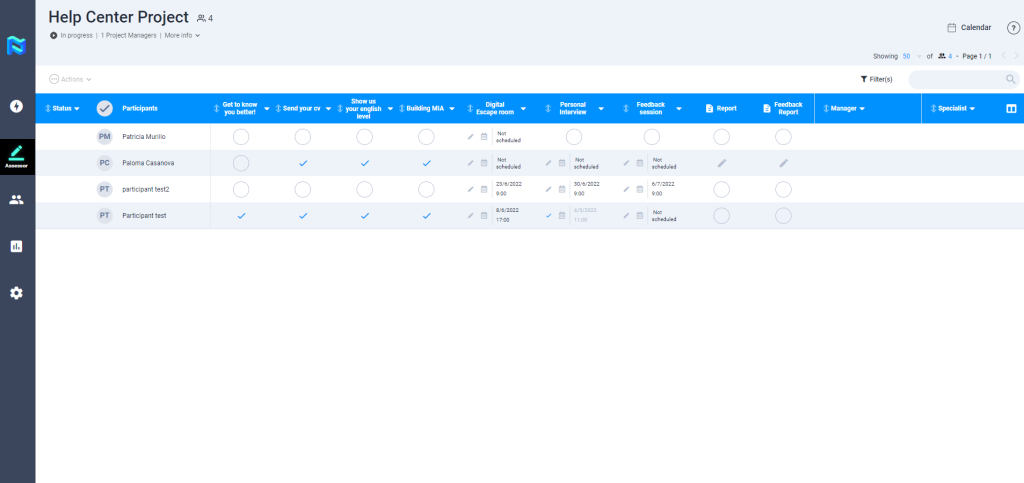
When you access the assessor area, you will find the participant’s table with the participants to whom you have been assigned to one of the phases
Even if you only have to evaluate one of its phases, you will be able to view the participant’s entire journey. But you will only be able to rate those phases to which you are assigned.
You will be able to perform different actions on the assigned participants:
- By selecting one or more participants from the “Actions” button at the top left of the table, you can:
- Send custom comunication
- Invite to videocall
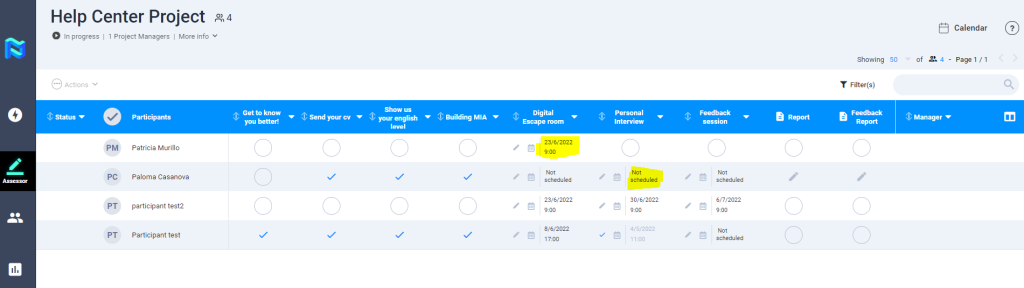
- Manage assignment: As an assessor, you can assign a date, time and location when the appointment with the participant will take place. Assign dates can be edited afterwards. We recommend confirming dates with the participant since Panorama won’t manage any cancellations or changes. To assign/edit the date, time or location click on the icon represented as a “calendar” and add the date, time and location you wish to assign to that participant. The participant will see this information on his/her landing page, and will receive an email whenever there are any changes.
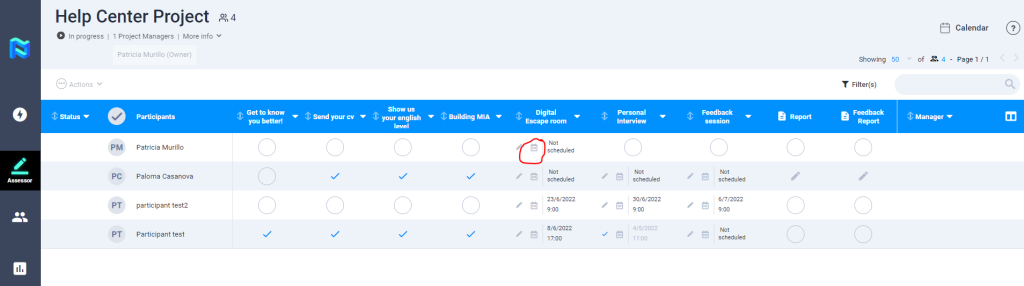
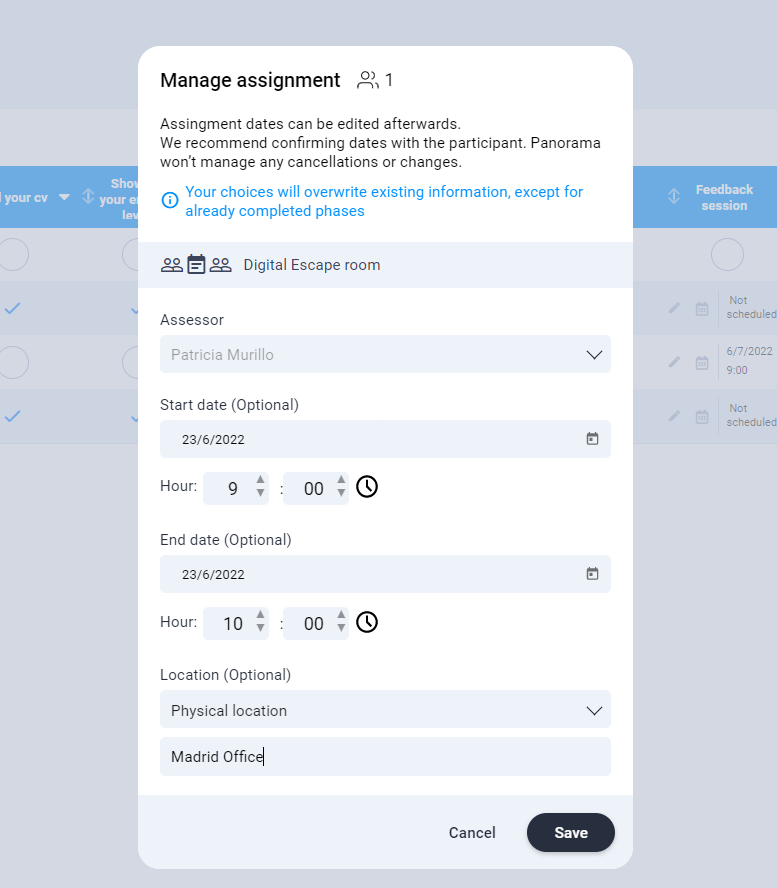
The information will be reflected in the table of participants. You will also be able to see if there is a phase that has not yet been scheduled.
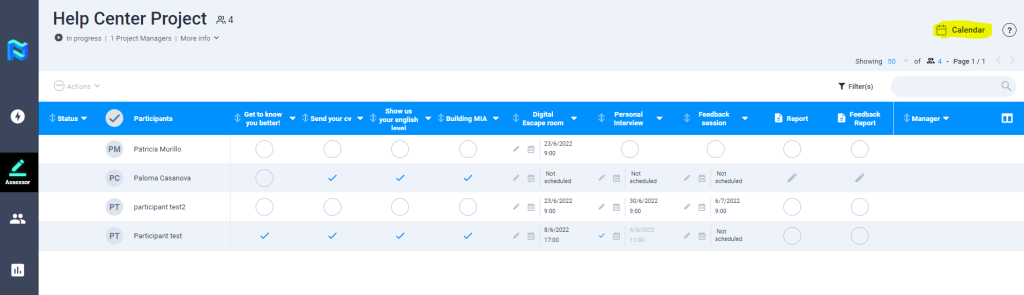
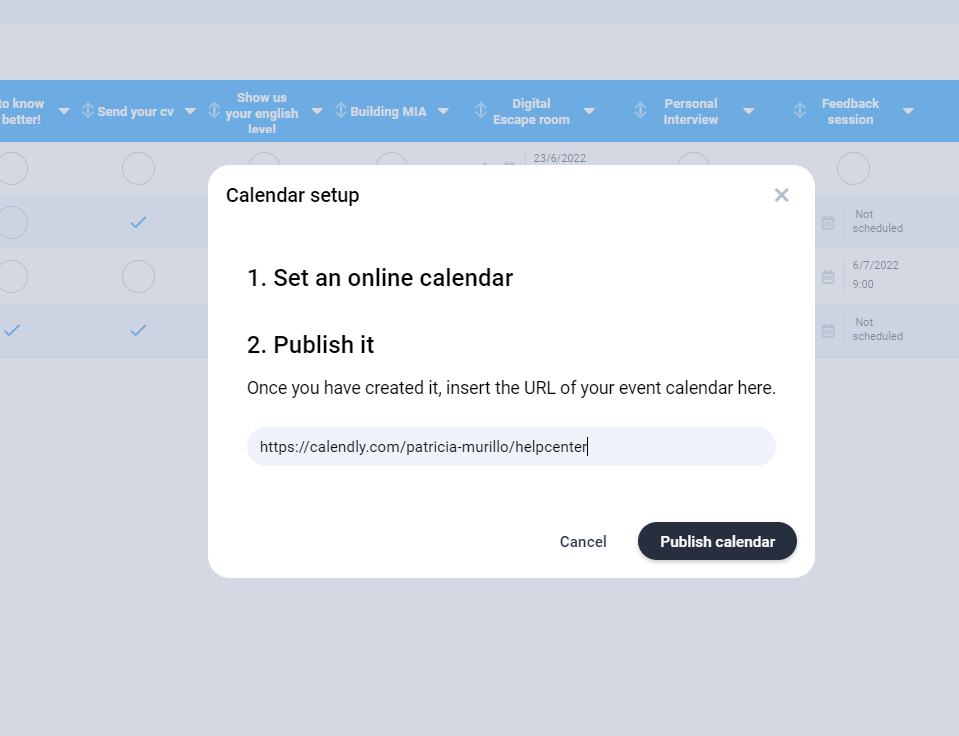
- Assign by calendar: Panorama also allows you the option of adding your calendar so that participants can schedule themselves according to your availability. To do this, click on the “Calendar” button at the top right of the screen. You must set a online calendar, and once you have created it, insert the URL of your event calendar there. Then, click on “Publish calendar“. Note: This will send emails to every participant, so they can book their assessments in your calendar. We recommend you not to publish it until you have all of your slots set.
Once your calendar has been published, the participant will be able to schedule an appointment through the landing page.
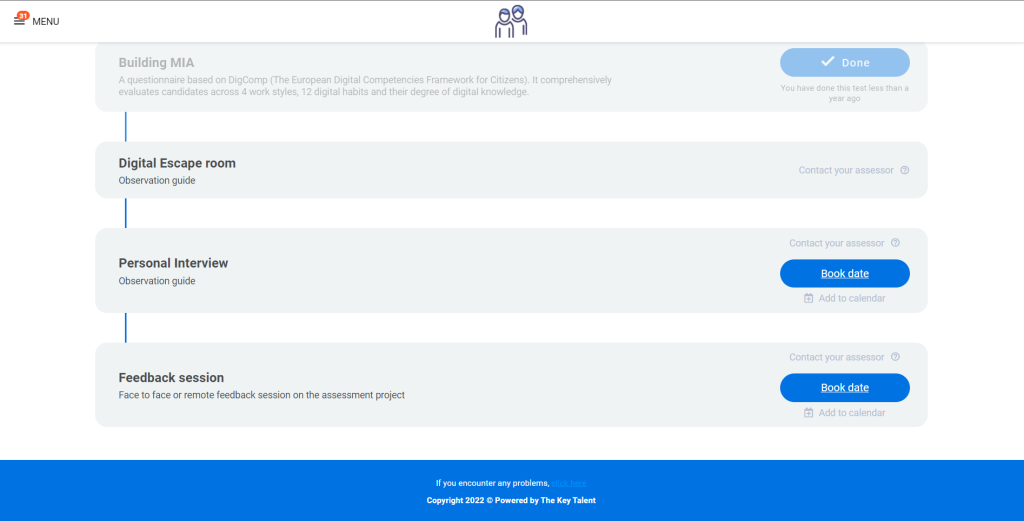
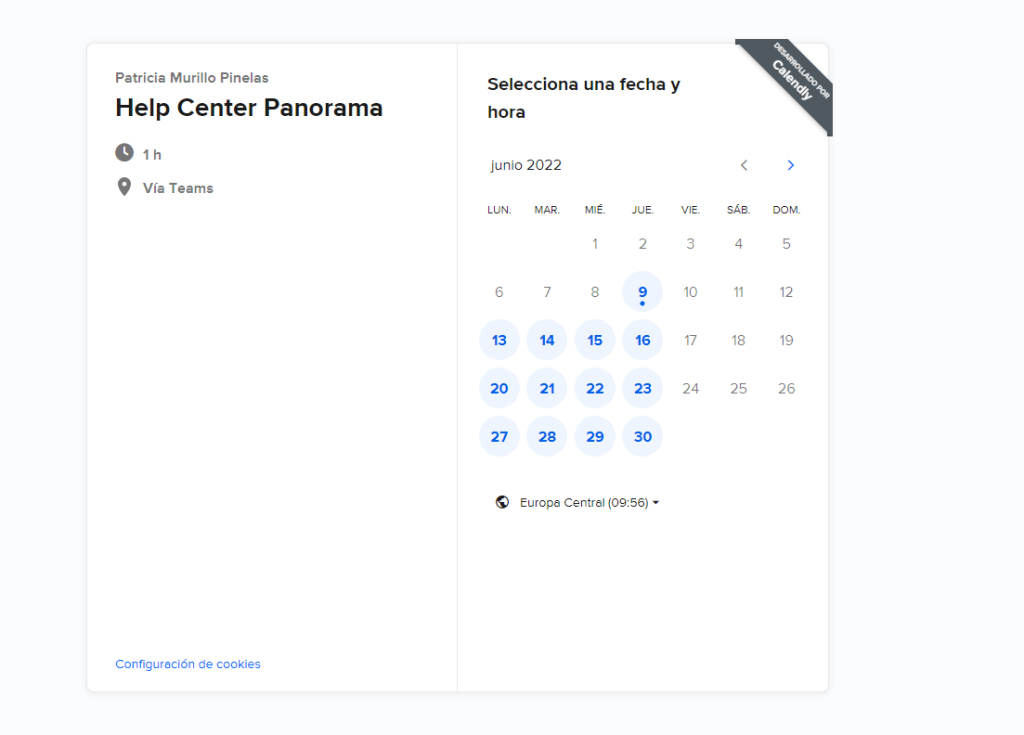
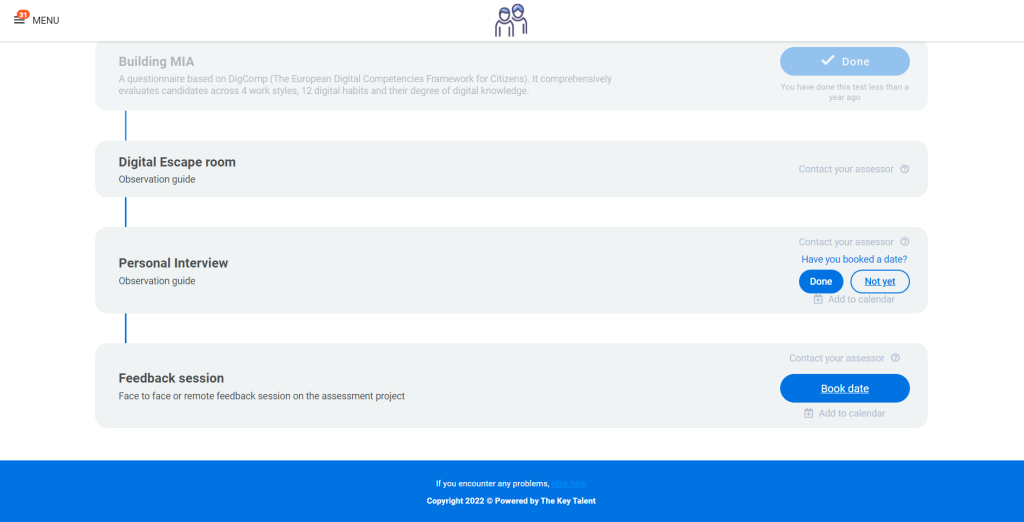
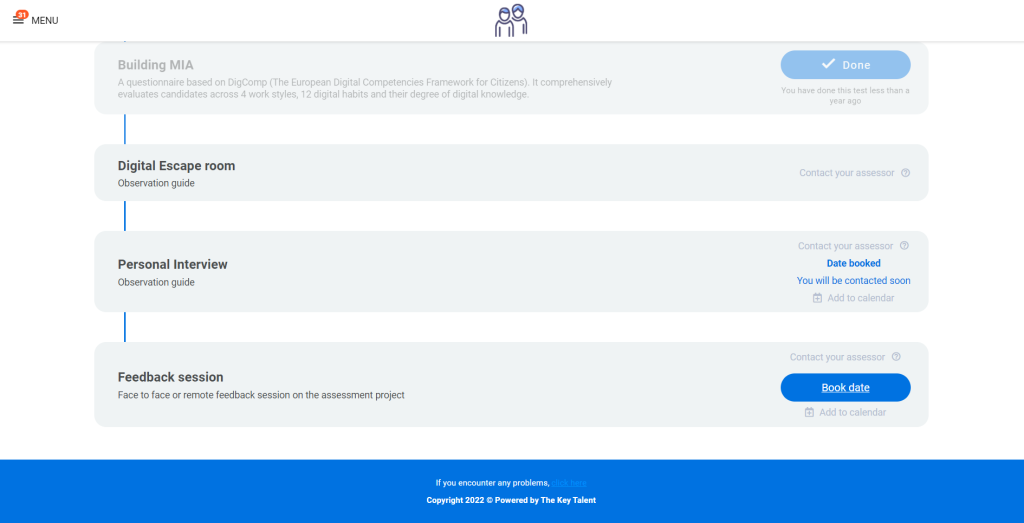
When a participant has been booked through Calendar, it will be represented in the table with the text “Booked on calendar“. The assessor can manually enter the date and time chosen by the participant, so that it is reflected in the table and in the participant’s landing.