
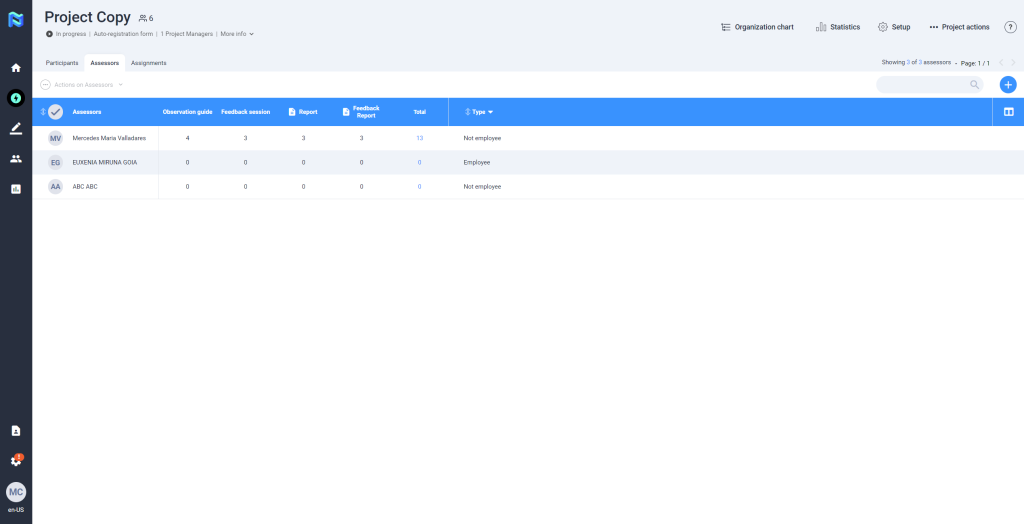
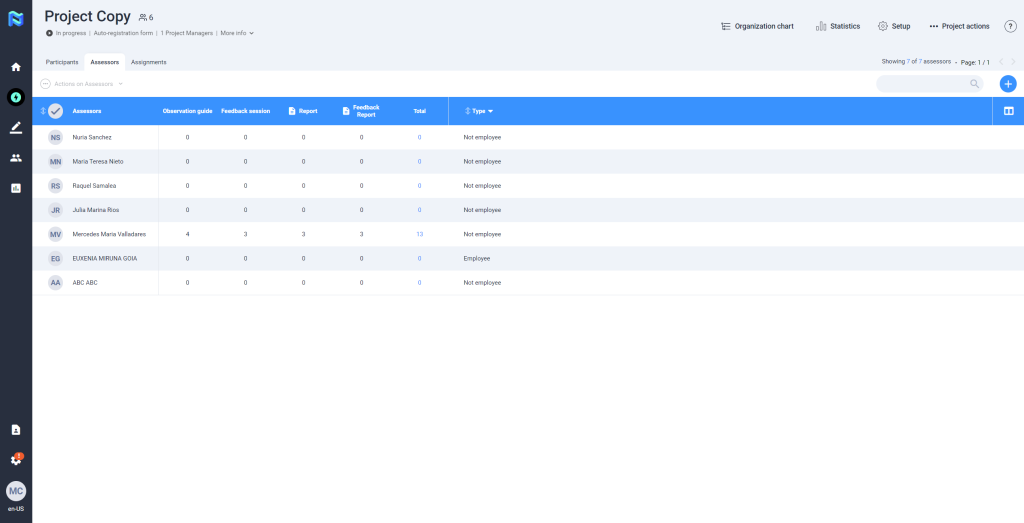
To add the Assessors to the Project, the Project Manager must be placed in the Assessors tab and click on the Add Assessor button, press the From Directory button or Create New one and add the assessors in the same way that it was done for the participants from the “From directory” option or “Create New one” Option.
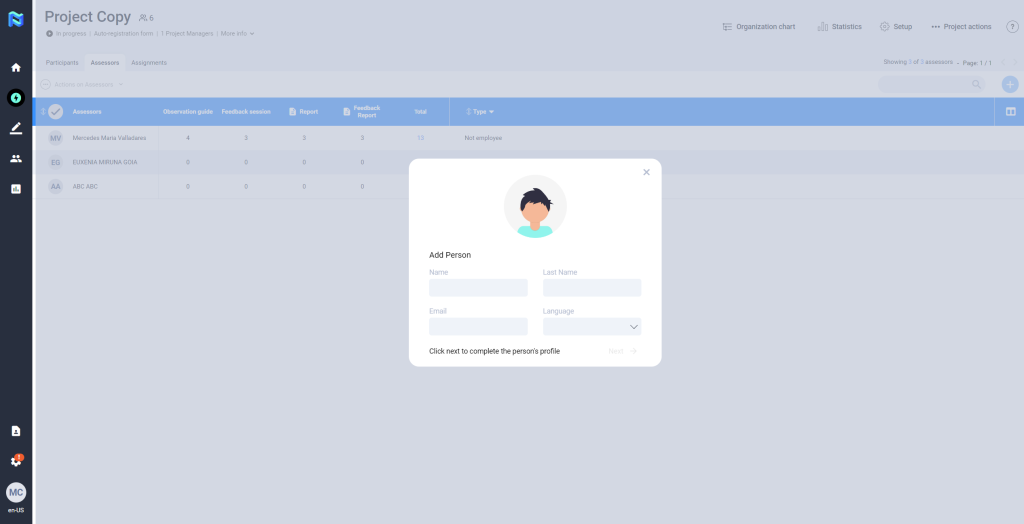
Create a new one: To create a new one, select that option and fill in the required fields. Click on “next”.
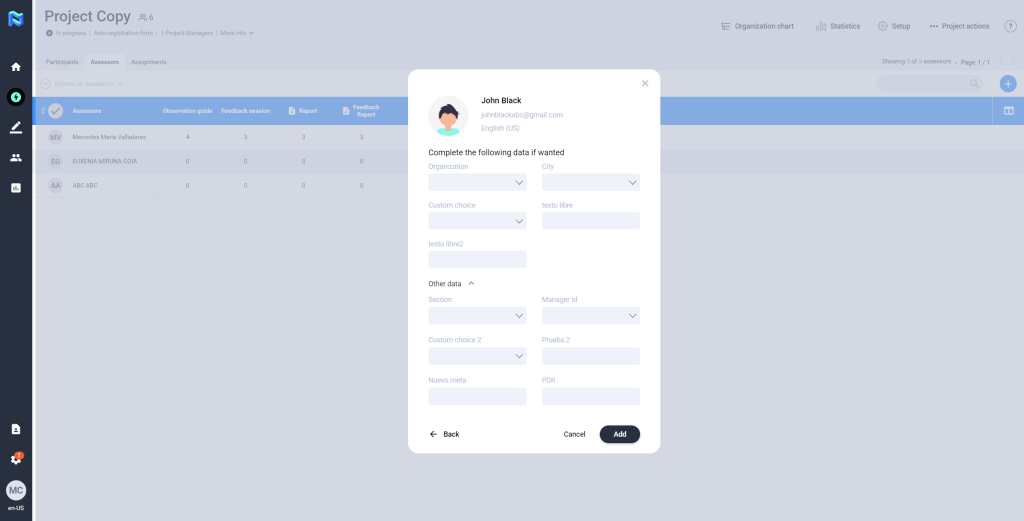
Next, fill in the fields corresponding to the metadata. Remember, when creating a participant, if the assessor you are adding has a corporate email address, some metadata may be mandatory.
Once you have completed the fields, click on the “Add” button to include the advisor.
From the directory: To add an assessor from the directory, click on the button “+ Add advisors” and select the option “From the directory“.
You will then be presented with a list of all the people who can be assigned as assessors. To select them, click on the little ball to the left of their name. When you have selected the people you want to include as assessors in your project, click on “Add“.
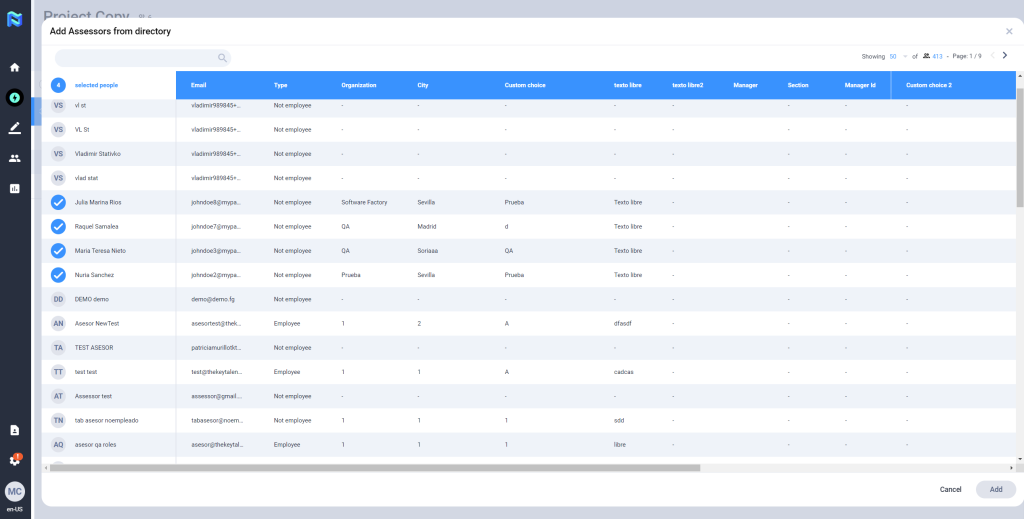
REMEMBER: For a person to be listed in the assessor’s directory, they must have the role of HRM, PM or Assessor, otherwise they will not be listed in the directory.
The next step would be to assign assessors to participants. To do this, please see the article “Assigning Assessors to Participants”.

