
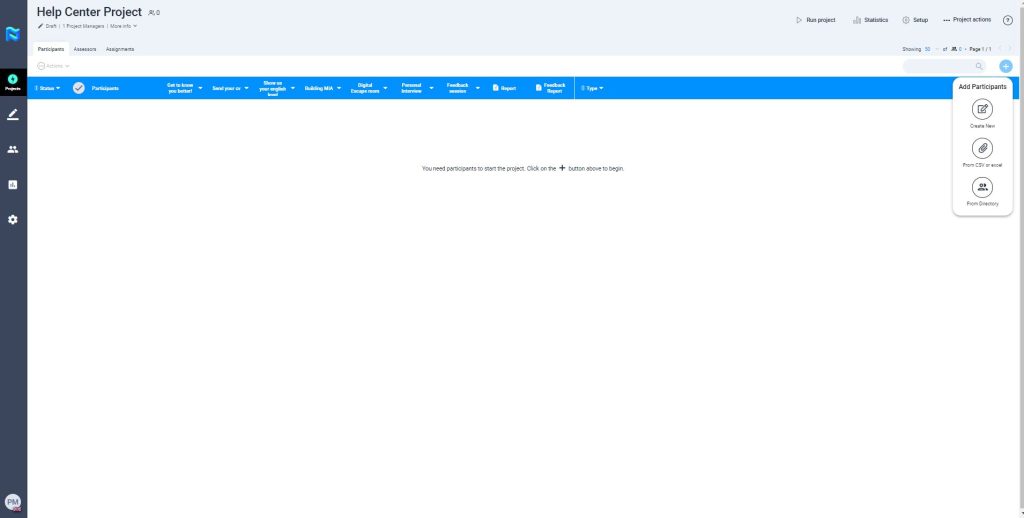
To add the participants to a project, from the Project manager’s perspective you will have two options made available to you when you press the “+ Add Participants” button.
The three ways to add participants are: creating a new participant or Excel or from the directory where you will find all the people that have been previously uploaded to the platform.
Create New
To add a new participant, click on the “+ Add Participants” button and select the option “Create a new participant”.
Fill in the form and click on the “Next” button.
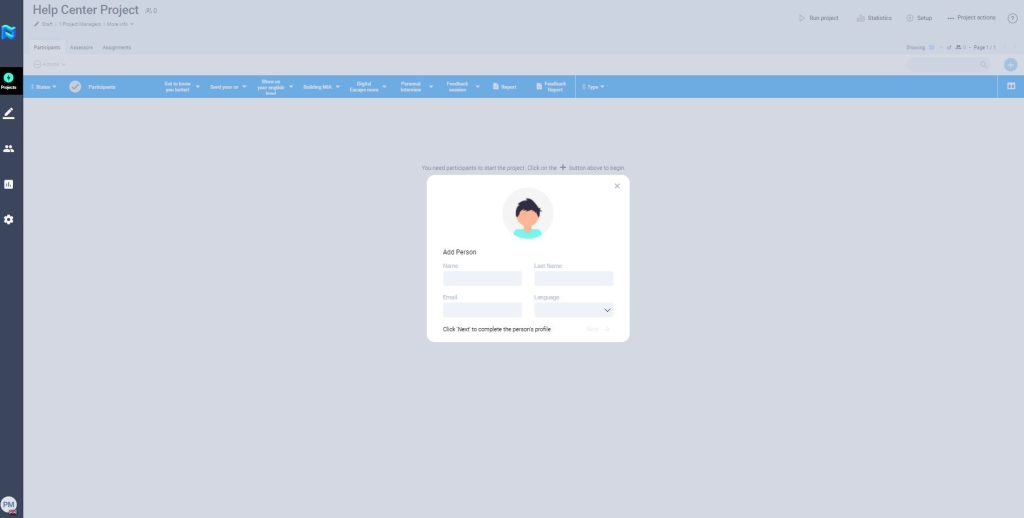
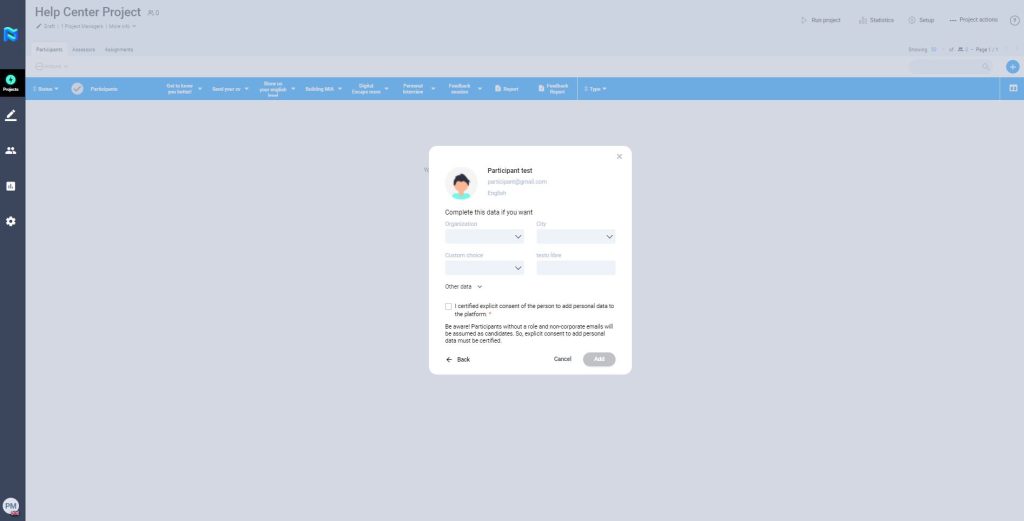
If the participant you want to add is external to the company and does not have an email with a corporate domain, the following fields are optional. Be aware! Participants without a role and non-corporate emails will be assumed as candidates. So, explicit consent to add personal data must be certified.
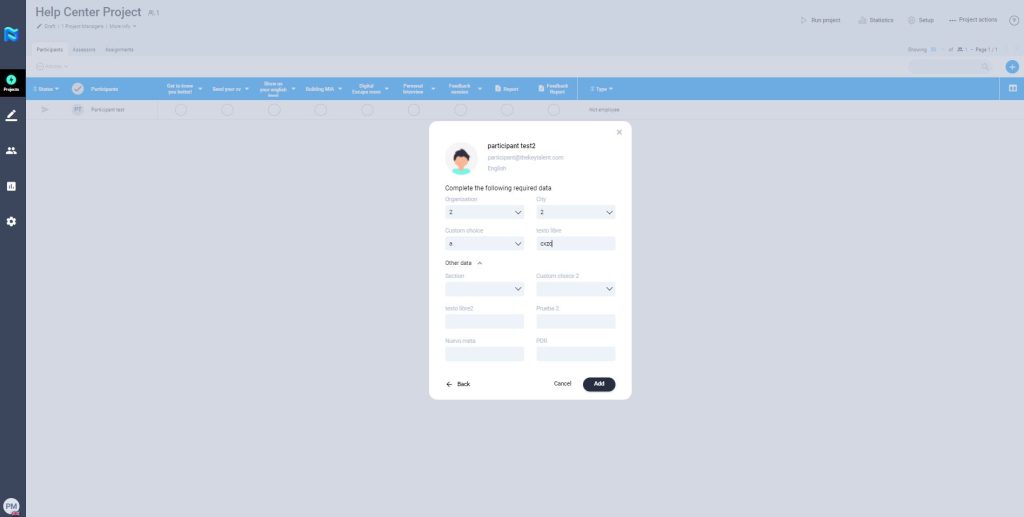
However, if the participant has an email with a corporate domain, you may have to fill in some fields corresponding to metadata that are mandatory. This will be previously configured in the “Administrative panel – Metadata” section.
Once you have completed the information, click on “Add”.
From the directory
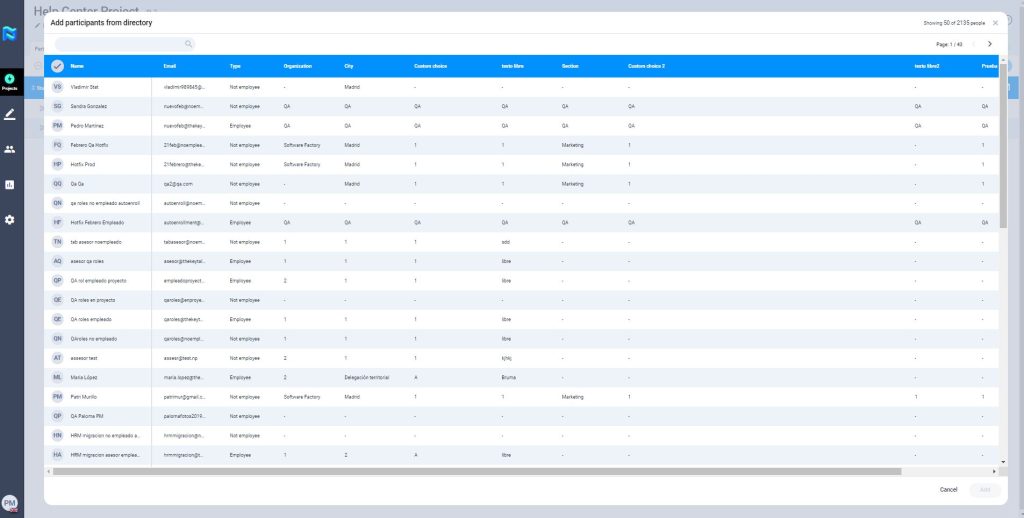
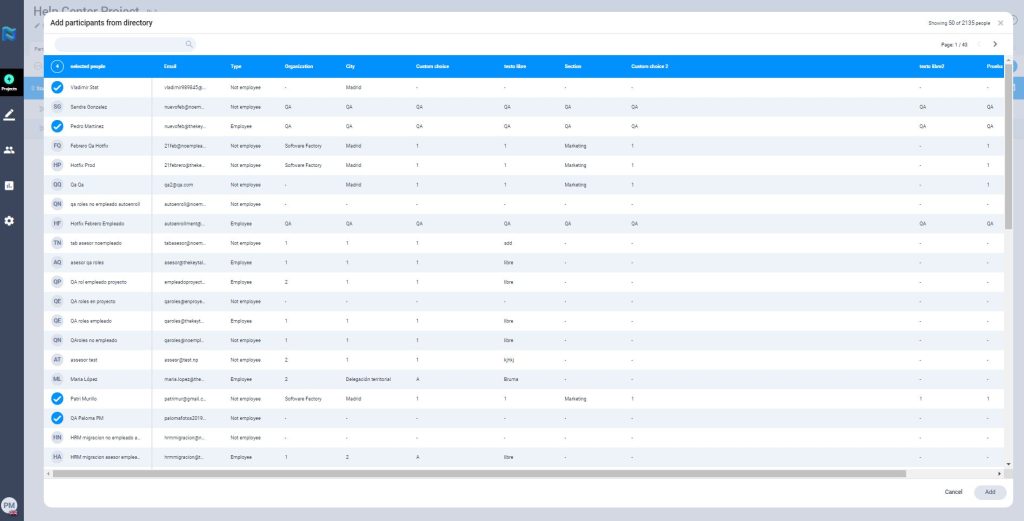
To add a participant from the directory, click on the button “+ Add Participants” and select the option “From the directory“.
You will then have available all the participants that have been previously uploaded to the platform. To select them, click on the little ball to the left of their name. When you have all your participants selected, click on “Add“.
From CSV or Excel
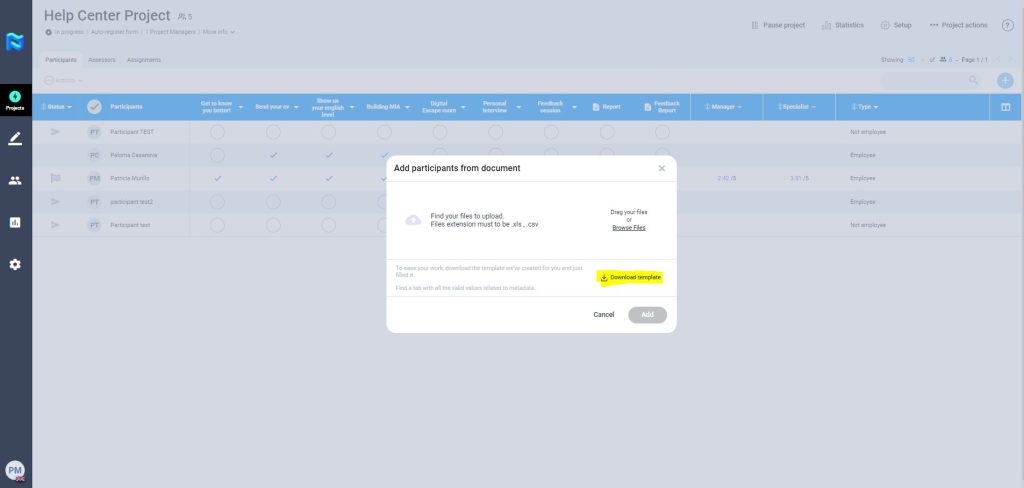
To add participants from a CSV or Excel file, click on the “+ Add Participants” button and select the “From CSV or Excel” option.
From here, you must download the template file that you need to use to upload your participants.
Please note that the Excel that you download with the data, results, etc. of the participants, cannot be used for uploading new participants.
In that template you will find 2 tabs:
Data employees: Here you will add the participants you want to upload to the platform by filling in the necessary fields. As you will see, in this template we indicate which values are required and optional.
Valid values: Here you will find all the valid values related to metadata that you need to know in order to fill the employees data. Please note that for choice metadata, you need to have created it previously in the admin panel in order for it to appear as valid values in the template.
In the people module, the participant upload template includes a mandatory role field.
You can upload the Excel or CSV file by dragging it or by clicking on browse files and searching for it on your computer.
You can only include values with less than 120 characters. You cannot add the client Admin user to a project, if you have it in the CSV or excel it will not be included in the project. You can always overwrite the participants’ data by uploading a CSV or excel with the same email addresses, but with different information in the rest of the fields. Be careful not to accidentally overwrite them. If you are a PM, remember that you can only upload up to 1000 participants via Excel or CSV.

