To create a new project, we must have a Project Manager or HR Manager profile, within Panorama, previously requested by the Panorama administrator.
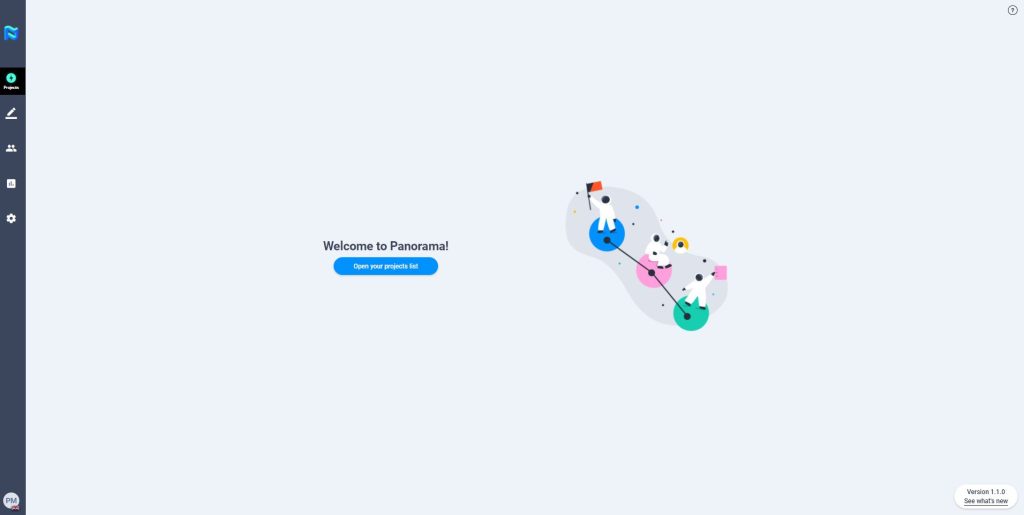
Start by clicking on the “+” button at the top left of the screen in the sidebar on the left-hand side when you enter the “Projects” module.
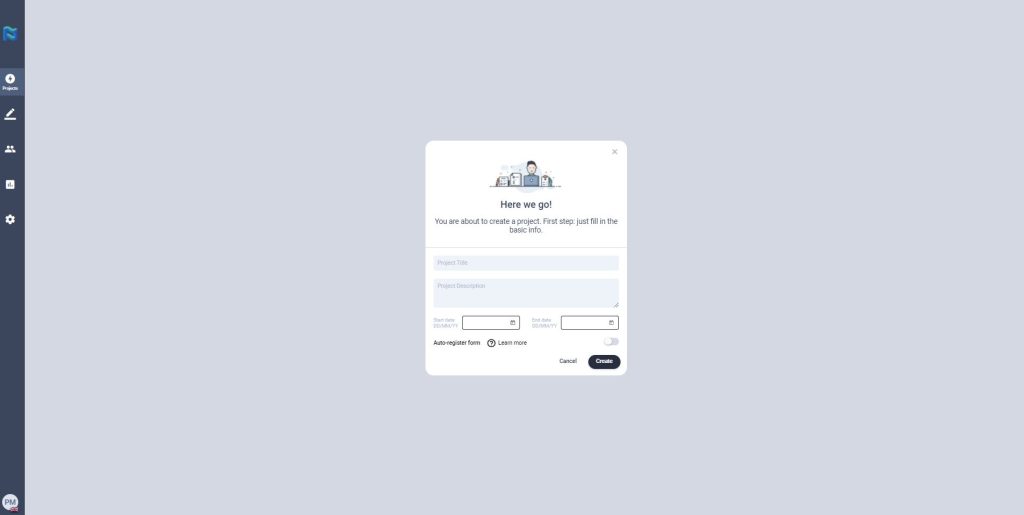
Then fill in the required fields to continue. If you activate the “Self-registration form” option, you will have the option for participants to register on the platform autonomously via a link.
To continue with the configuration, click on the Create button.
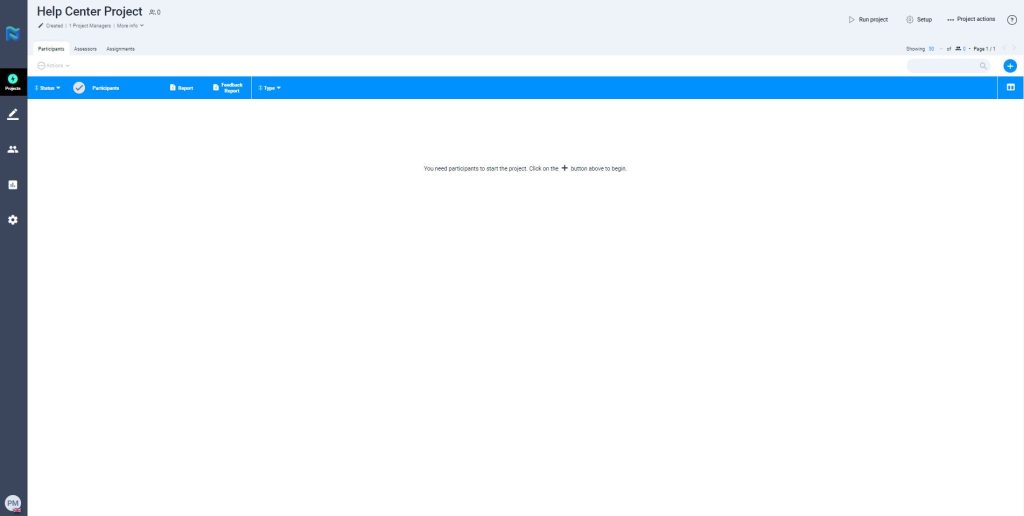
To access the settings area, click on the Setup button at the top right corner of the project control panel.
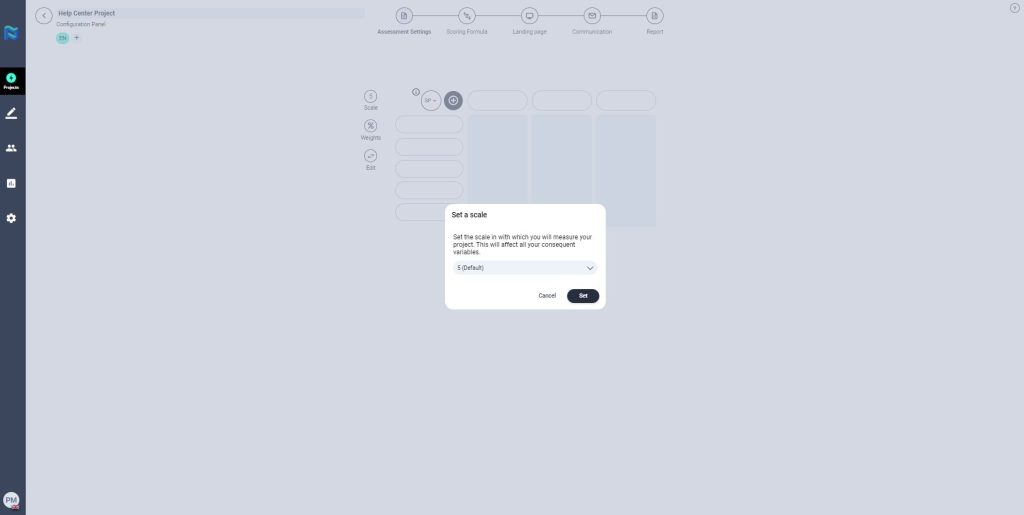
Next, you will access the Settings section where the first thing you will have to do is to select the scale you are going to use to evaluate your project. By default, the system will mark the 1-5 scale as selected, but you can select a different scale by clicking on the drop-down.
Select the desired scale and click on Set/Define to continue with the project configuration. Once this is done, you will see the Project Settings Panel.
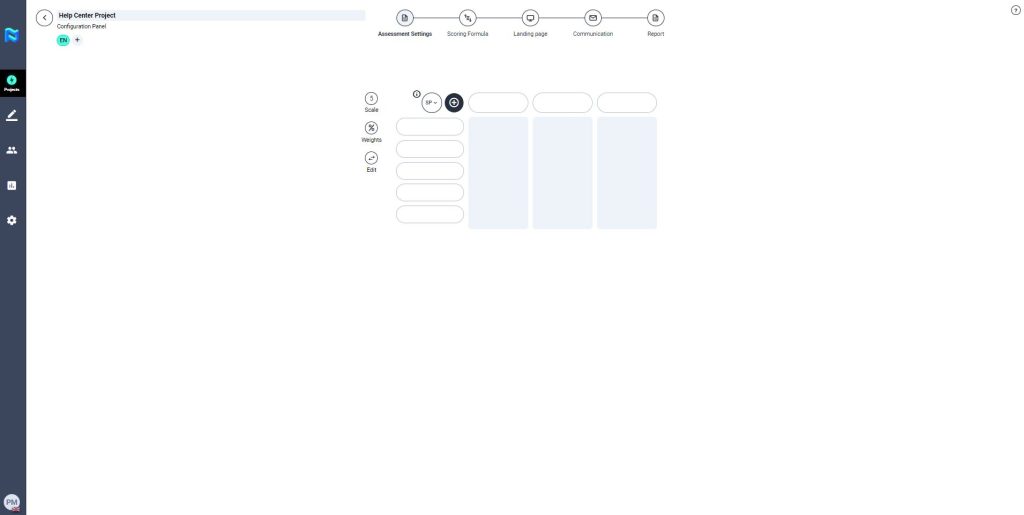
These are the steps to follow in order to configure a Project before launching it, they are found in the upper part of the Project Setup screen as if they were a timeline (as shown in the following image below).