
The Observation Guide is perfect when adding an exercise that is not already integrated within Panorama or any tool that does not have automatic scoring. This includes case studies that are in PDF format or dynamics purchased from The Key Talent. They can also be used for interviews when using external videoconferencing tools.
There are two types of Observation Guides: Individual guides and Group Dynamics guides.
The configuration of both types of observation guides is very similar, they just have different purposes. To do this, head to the project configuration panel and click on New tool.
In the All General Tools section, you can add as many observation guides as you need for your project.
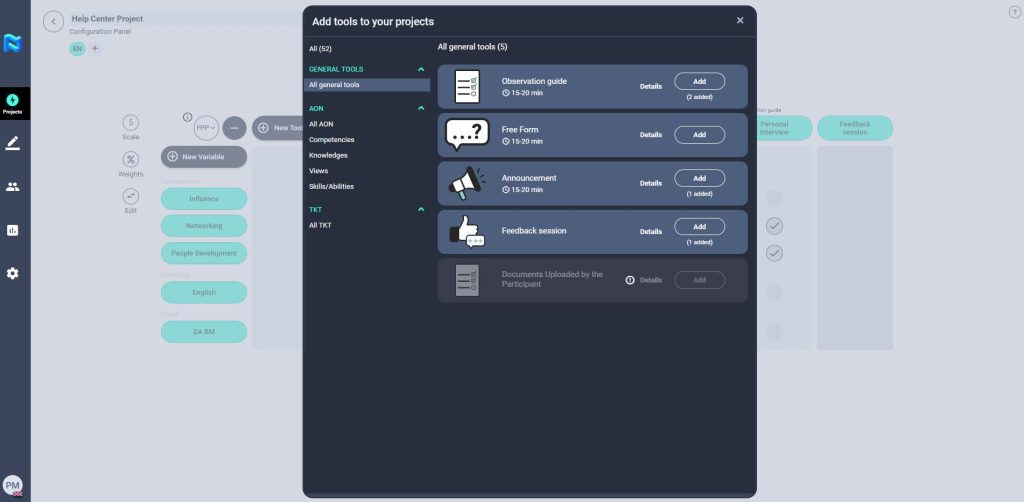
Once you have added an observation guide to your assessment matrix, select the variables that you will measure with that tool.
Next, configure the Observation Guide. Click on the name of the tool to access the configuration options.
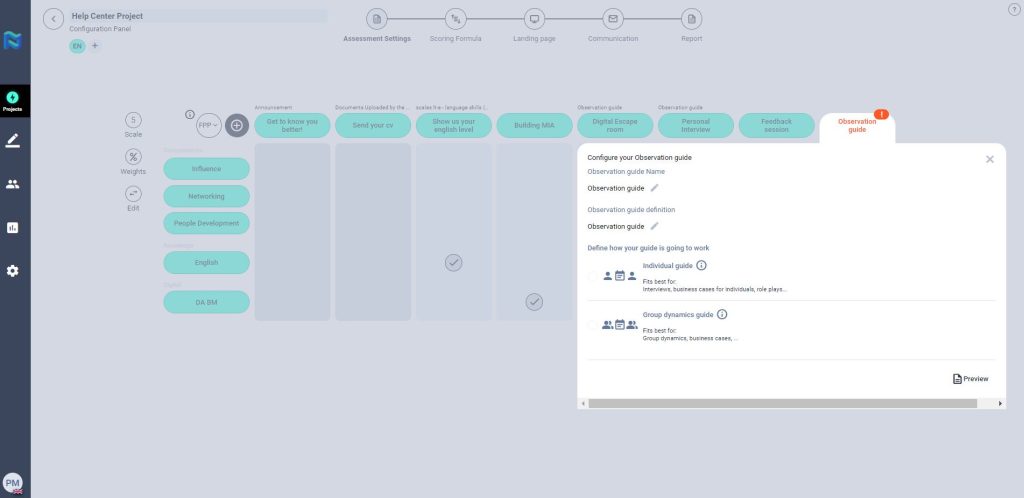
You can define a name and description for the observation guide. This will be visible to the participant through the landing page.
The next step is to choose the type of observation guide you are going to use depending on the type of exercise to be carried out. As mentioned above there are 2 types:
- Individual guide: This can be used for personal interviews, individual business cases or role-plays.
- Group dynamics guide: This can be used, for example, for group role-plays or group dynamics.
To continue with the configuration for both cases of the observation guide, you will have to define:
Session content: Here you define, “what is to be measured”, i.e. the variables that will be assessed through this tool. You can add questions and behaviours that will help the assessor to evaluate. In addition, you can make this phase visible or not visible to the participant.
You also have the possibility to add open questions.
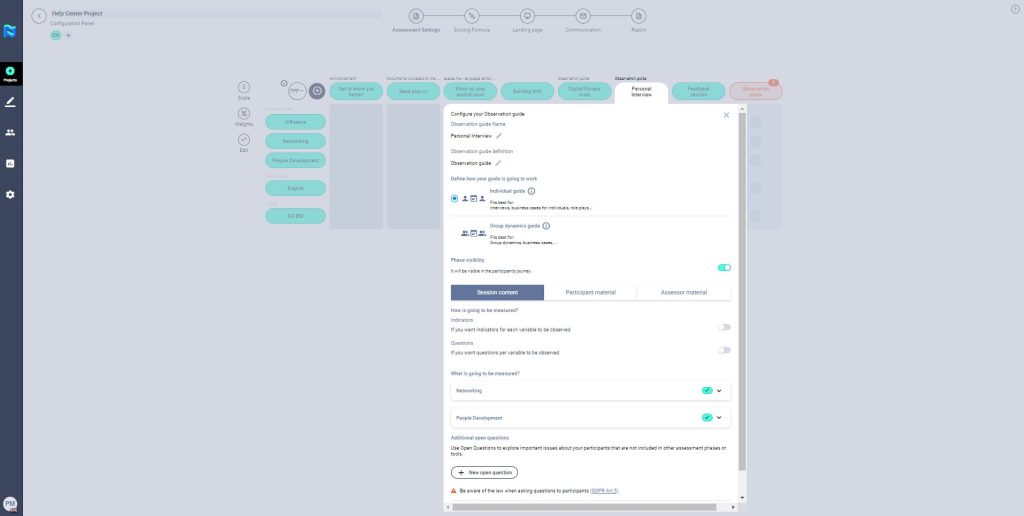
If you want to add indicators and questions to measure the selected variables, you will have to continue with the configuration as follows:
Once you activate the indicator and question options, you will see that the variables you are going to measure through the observation guide have been marked with an orange exclamation mark. Click on each of the variables to add the questions and behaviours.
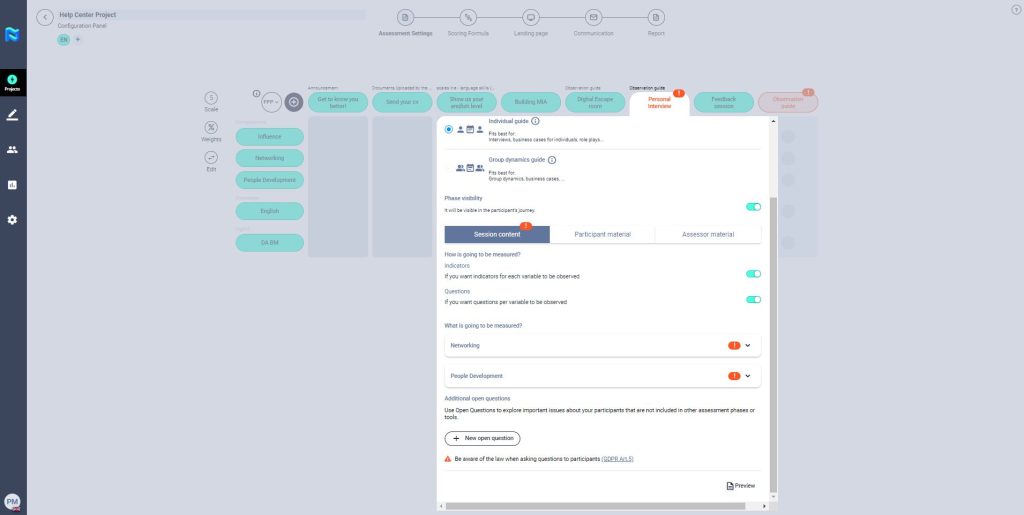
Then click on “+” Select questions and indicators and choose the ones you want to use to assess the variable.
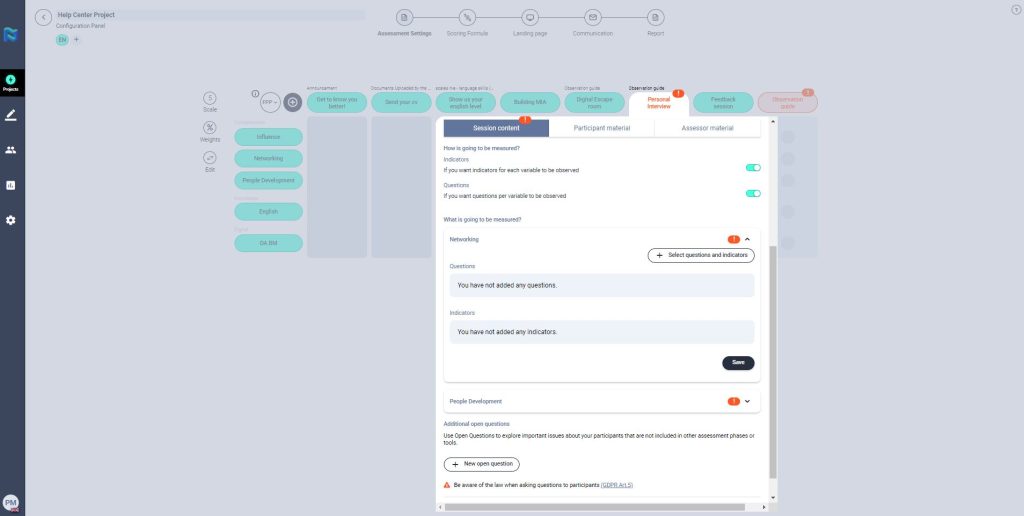
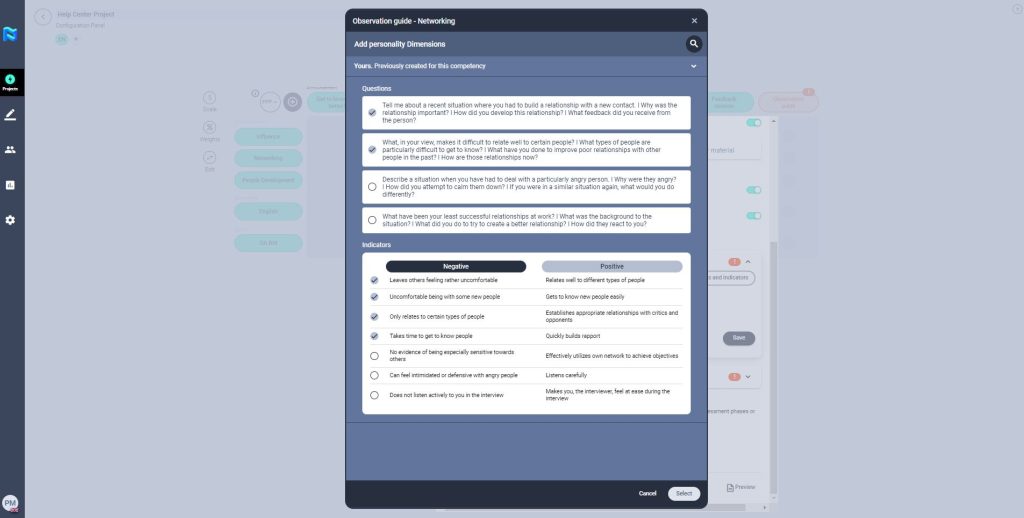
Finally, click on save.
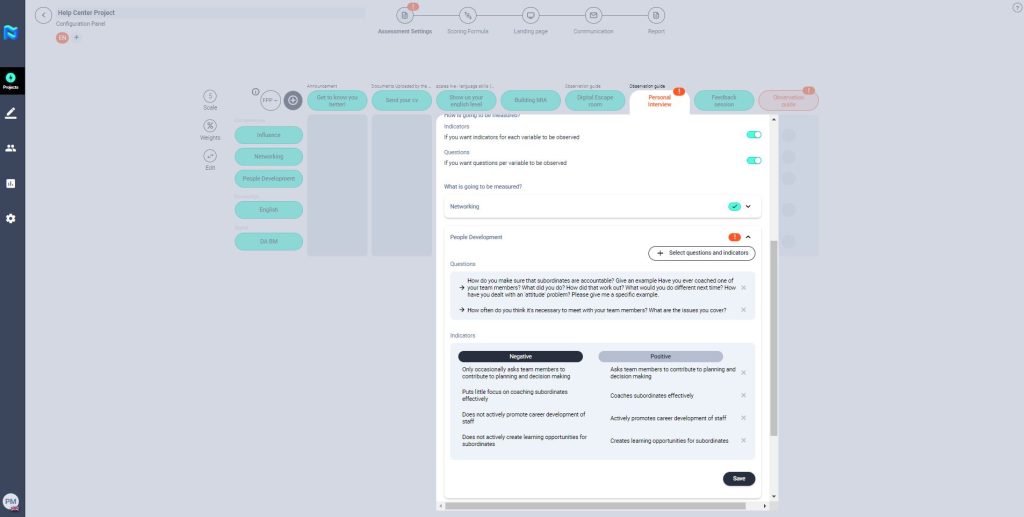
You will see that the variables have been re-checked with a green check, which means that you have added the questions and indicators correctly.
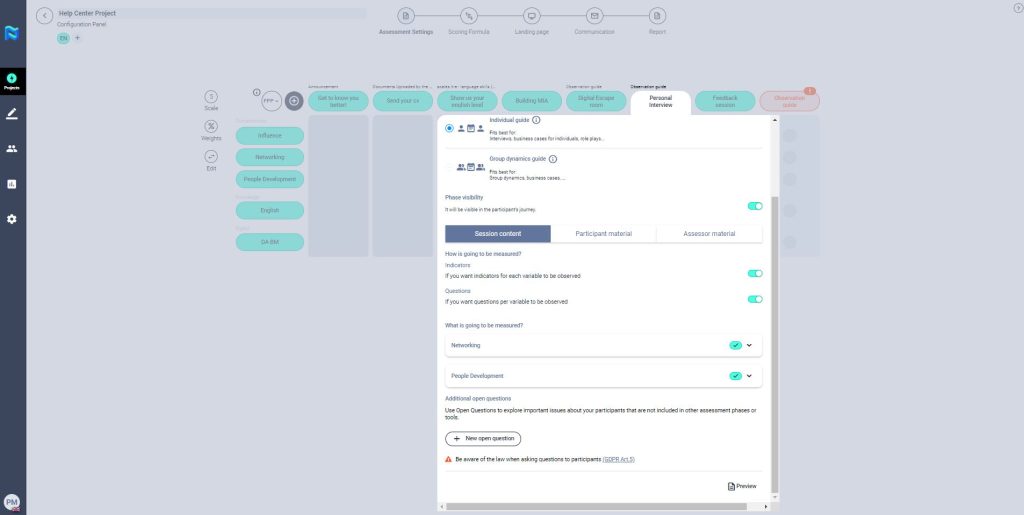
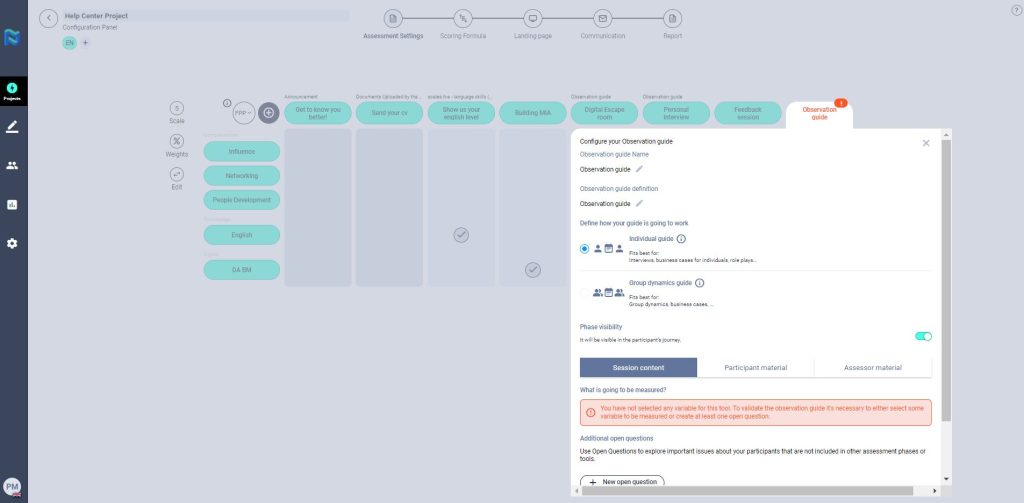
Please note that if you have not previously configured in the administrative panel the variables that you are going to use for this tool, you will not be able to continue with the configuration of the observation guide and you will get the following message.
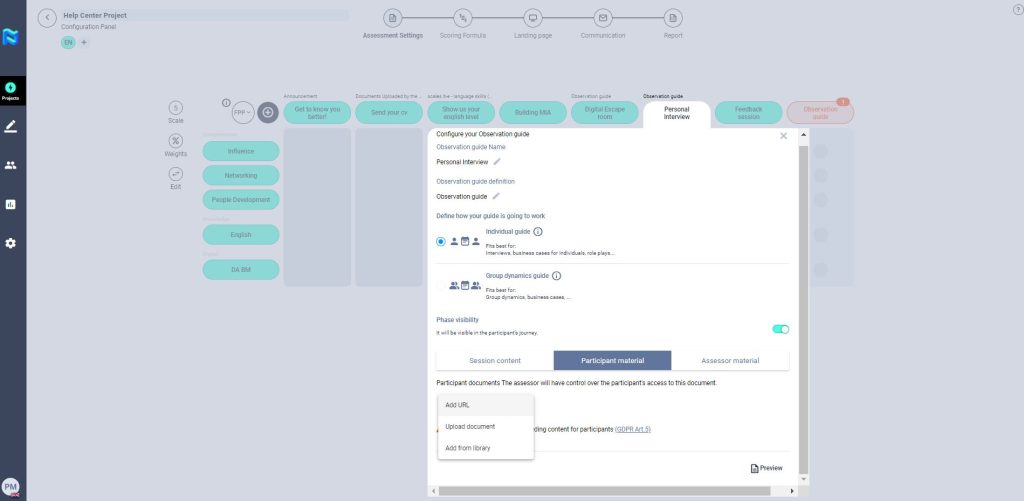
Participant material: The assessor will have control over the participant’s access to these documents.
You can add documents via a URL, and upload a document you have saved on your computer or from the client’s library. When you choose the library option, a pop-up window will appear where you can choose from the list the exercises you need.
Note: To add documents from the library, it is necessary that the dynamic has been previously uploaded to this library. To do so, you will have to request it from The Key Talent operations team. Remember, only exercises that do not offer automatic scoring can be used here.
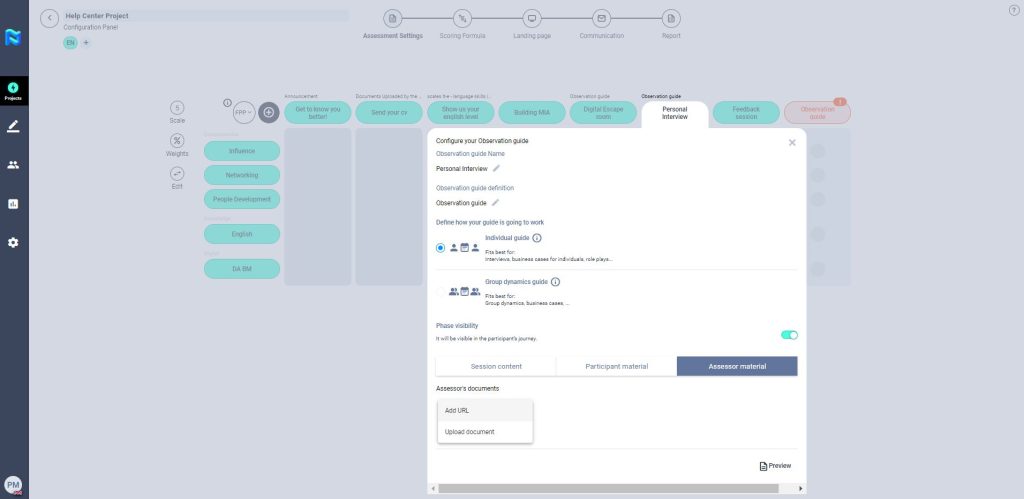
Assessor Material: You will be able to add documents via a URL or upload a document from your computer. This document can include a link/PDF for the participant dynamics and the technical documentation for the dynamics for example.
Once the observation guide is set up, you can preview it to check that everything is set up correctly.

