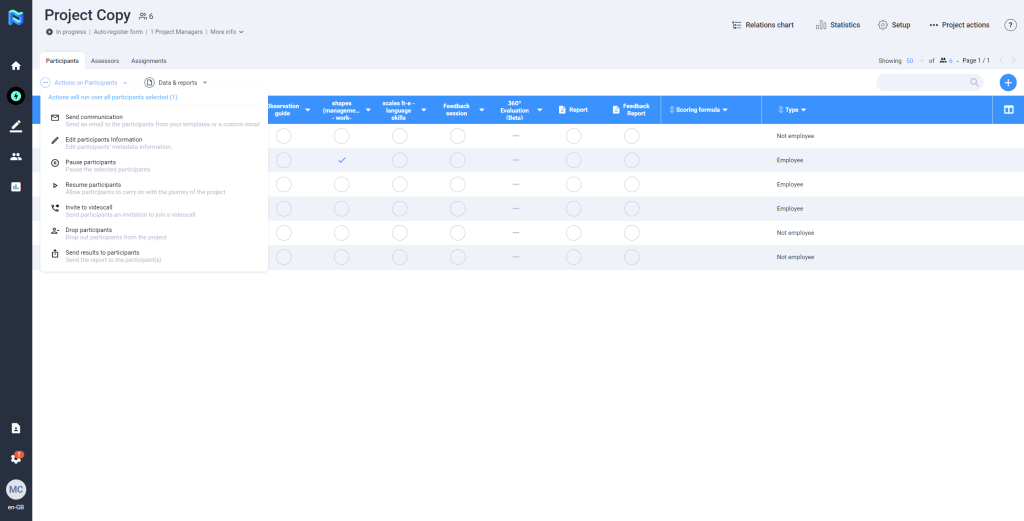
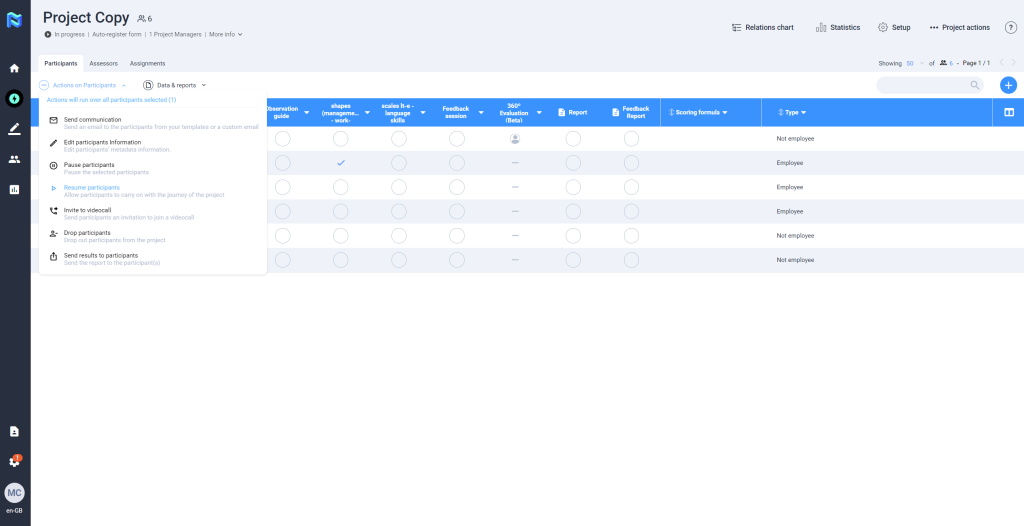
Send communication
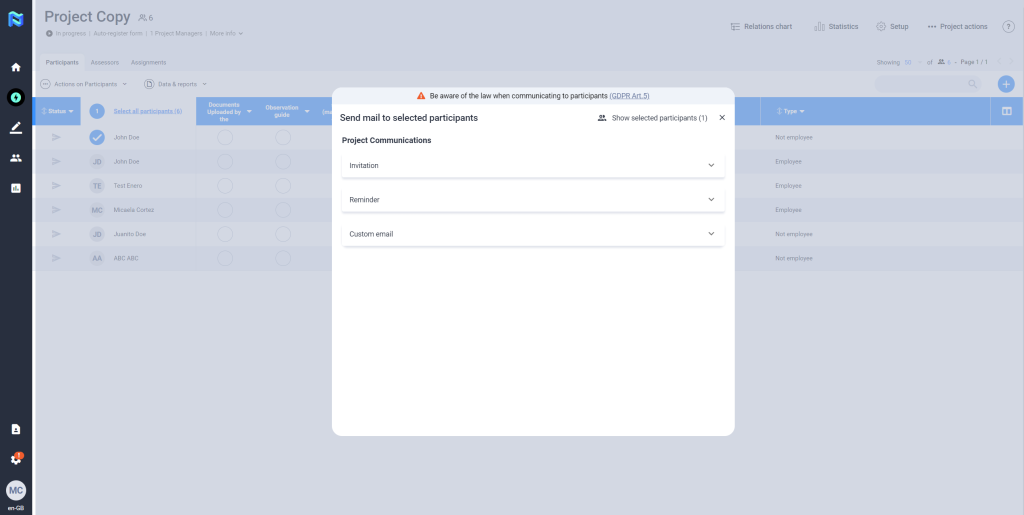
There are 3 types of communication:
Invitation: This email is used to send the invitation to the project to the participants. Within this email, participants will find access to the project landing page, where they will be able to carry out the tests configured in the project.
Reminder: This email is used to remind participants that they have pending tests to finish the whole process.
Custom e-mail: This e-mail is used to send any type of communication to the participant about the project they are part of.
Invite to videocall
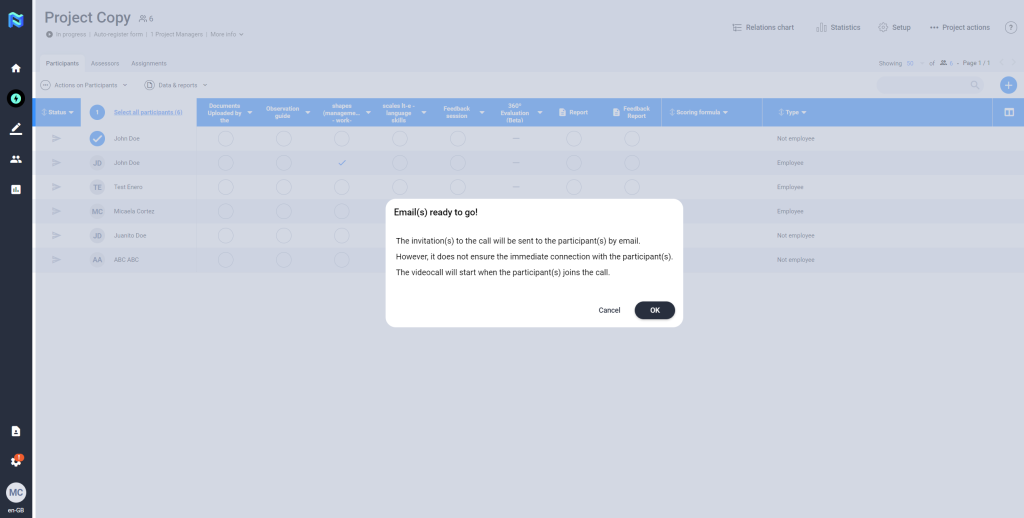
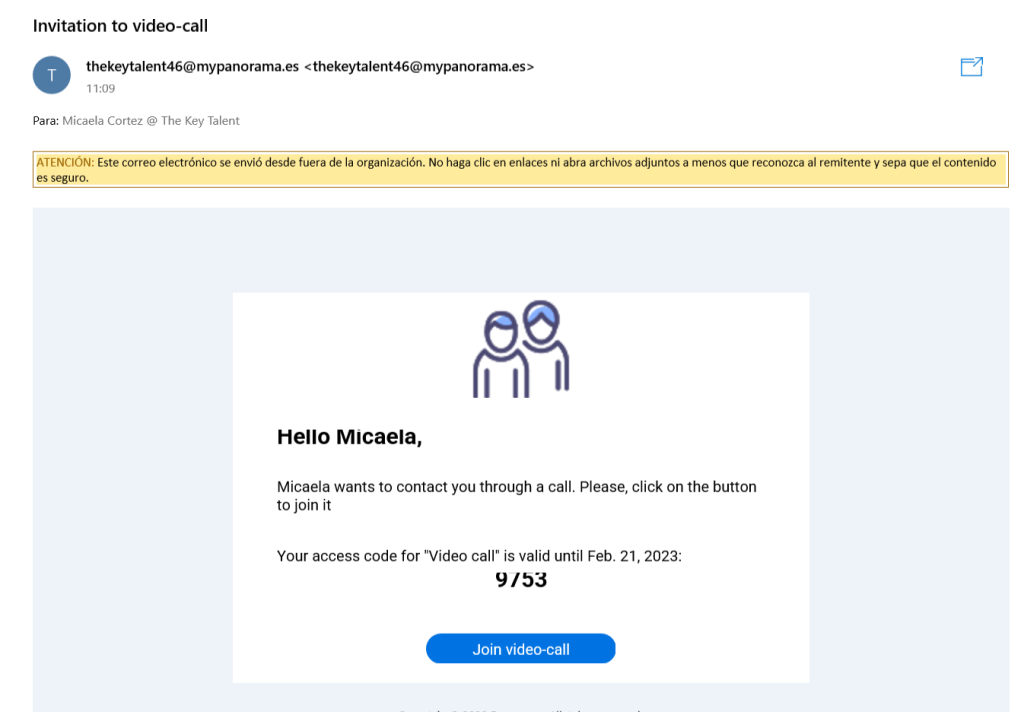
To invite one or more participants to a video call at the same time, select them, click on “Actions” and then on “Invite to video call“.
The invitation(s) to the call will be sent to the participant(s) by email. However, it does not ensure an immediate connection with the participant(s).
The video call will start when the participant(s) joins the call.
Download Participant Data
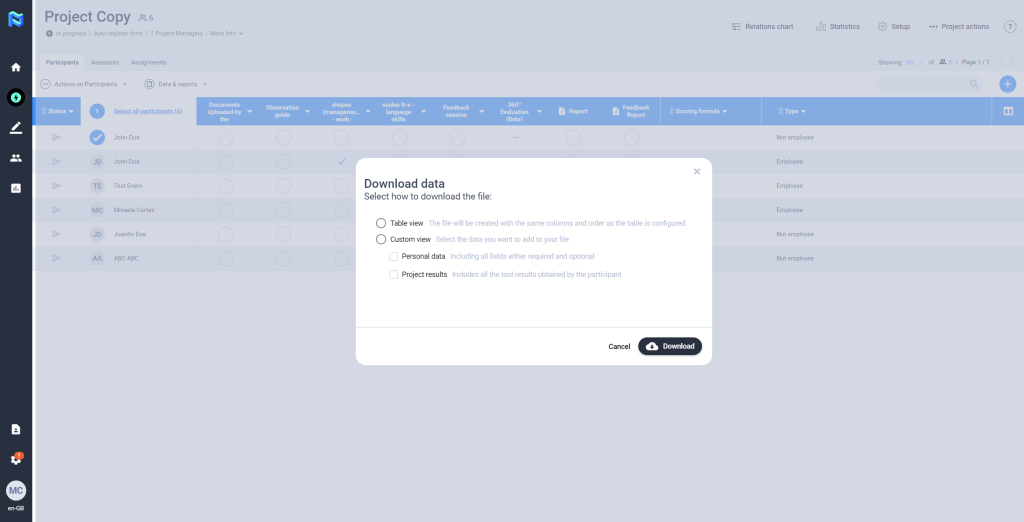
Select the participant(s) you want to extract data from, and then click on “Data and reports“
You will then need to select how you want to download the file:
- Table View: This file contains the same columns and the same order in which the table is set up.
- Custom view: Here you can select the data you want to add to your file. You can choose one or both of them.
- Personal data: Includes all fields either required or optional.
- Project results: Includes all the results obtained by the participant in that project.
Edit participant information
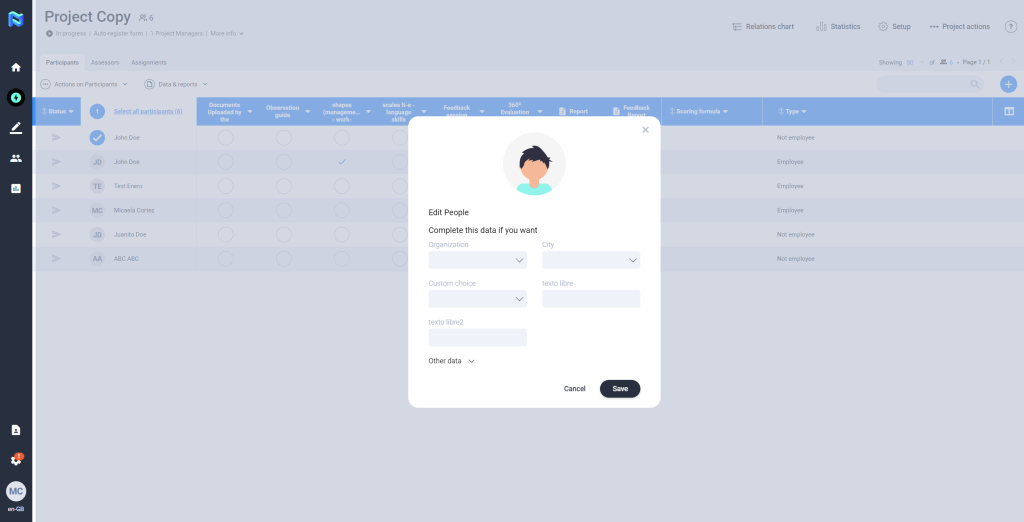
You will be able to edit the participant’s metadata, as well as the language. This action is done by marking the participant in the icon to the left of his/her name and clicking on the “Actions” button, we then select the option “Edit participant information”. Then, you will have to save the data by clicking on the “save” button.
Pause participants
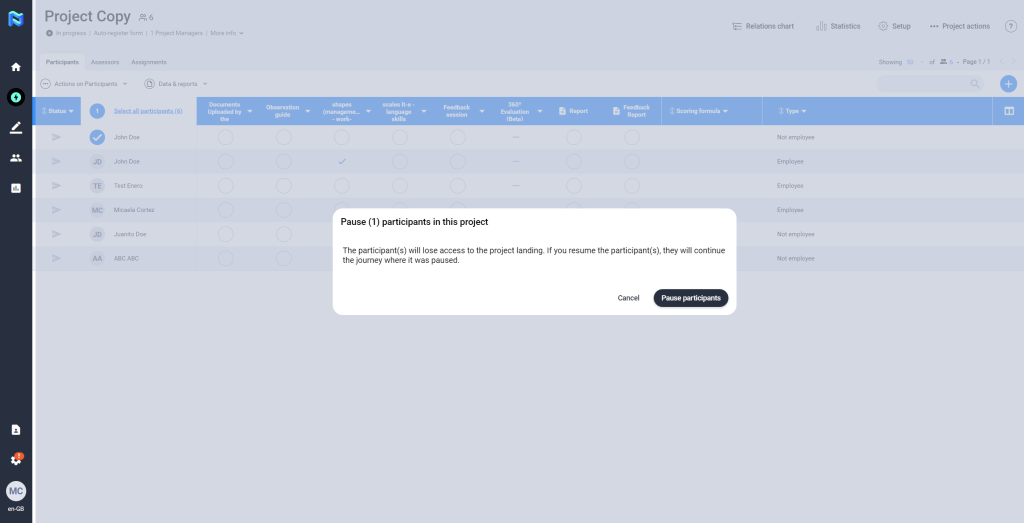
Panorama allows the PM to pause a participant in a given project when it’s required, making it impossible for him/her to advance to the next phase of the project. This action is done by marking the participant in the icon to the left of his/her name and clicking on the “Actions” button, we then select the option “Pause participants”. The participant(s) will lose access to the project landing. If you resume the participant(s), they will continue the journey where it was paused.
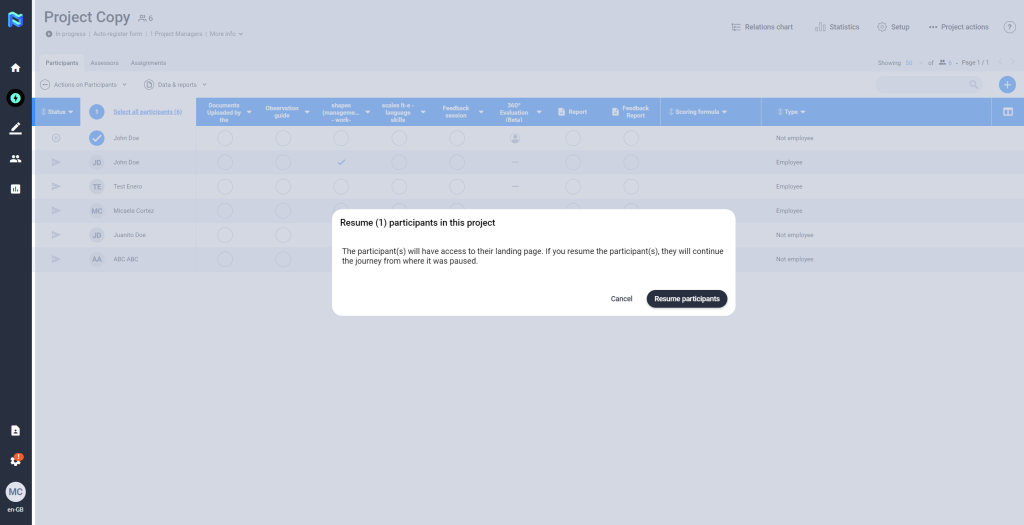
Resume participants
This action is done by marking the participant who has been paused in the icon to the left of his/her name and clicking on the “Actions” button, we select the option “Resume participants”. Then, the participant(s) will have access to their landing page. If you resume the participant(s), they will continue the journey from where it was paused.
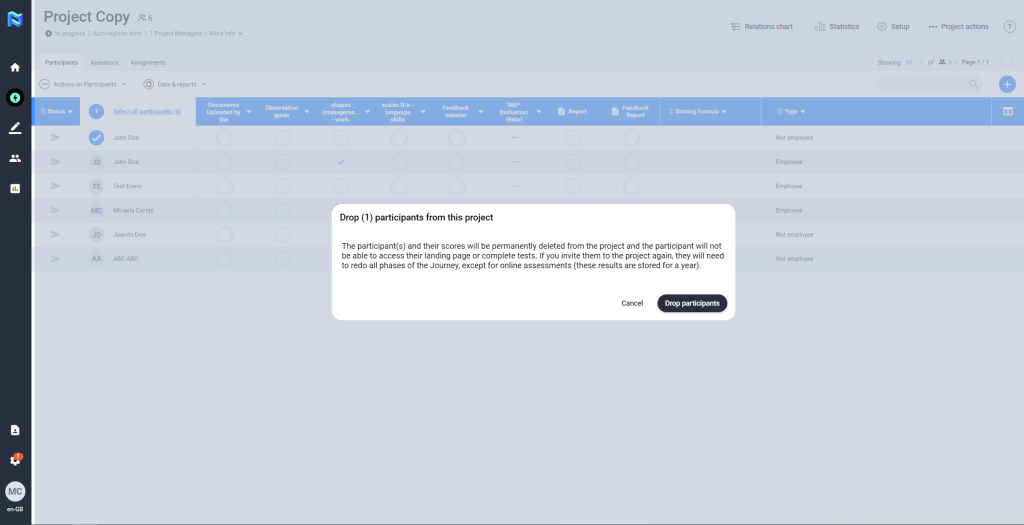
Drop participants
This action is done by marking the participant in the icon to the left of his/her name and clicking on the “Actions” button, we select the option “Drop participants”. The participant(s) will be deleted from the project permanently. Even so, you will have all their results in the People section.
Send results to participants
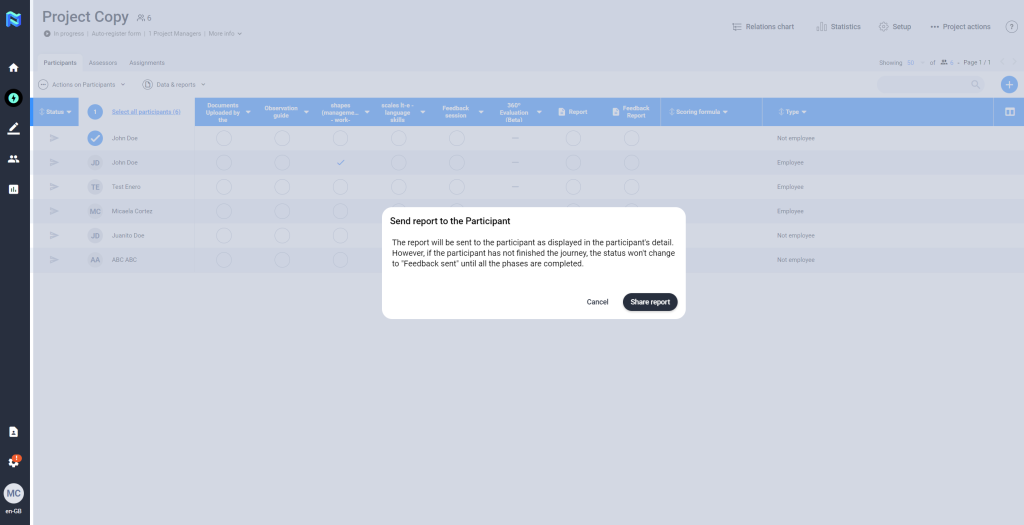
The platform allows the possibility of sharing the Feedback Report directly with the participants. To perform this action, the participant does not need to have finished the project journey. This is activated by pressing the ”Actions” button, and selecting the option “Send results to participants”, you then press the button “Share report”, at this time the participant will receive an email indicating that he/she can consult the results of the project on the web that will redirect the link obtained in the mail.