Creating the Reference Profile
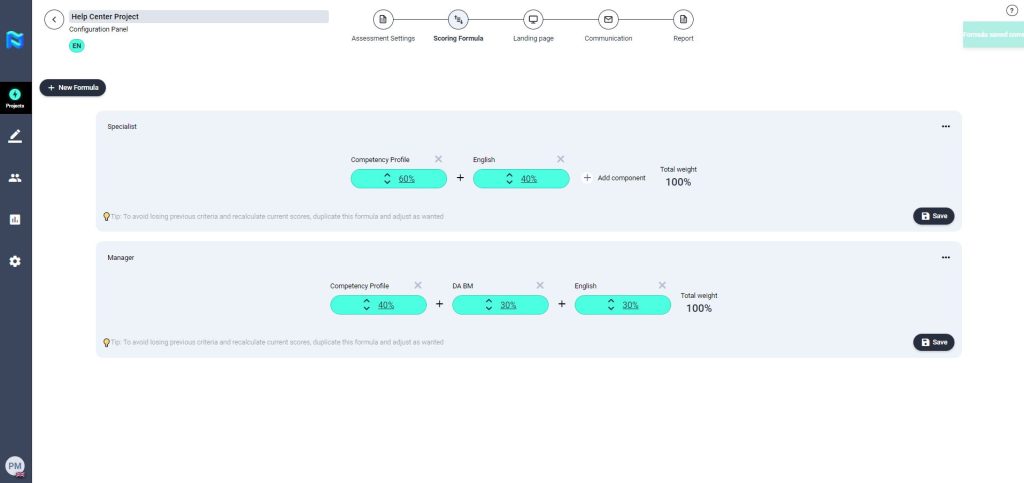
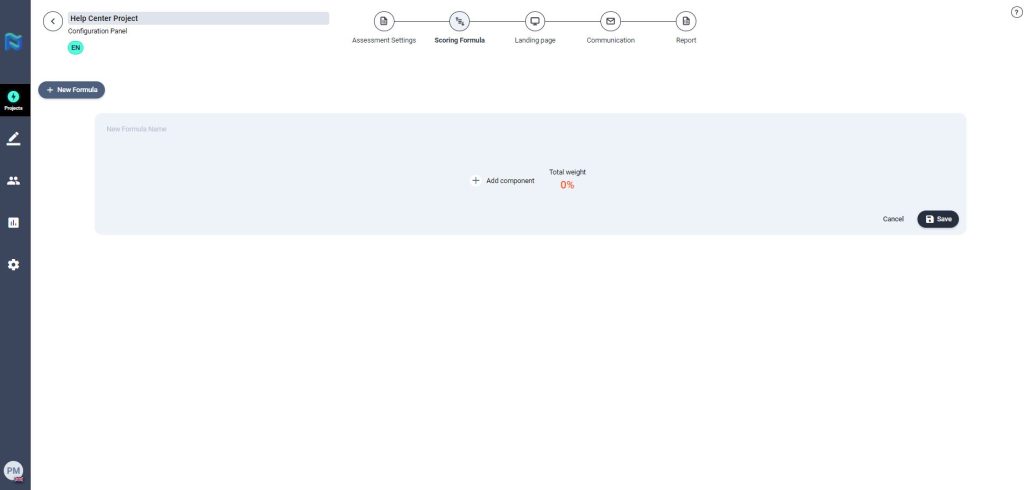
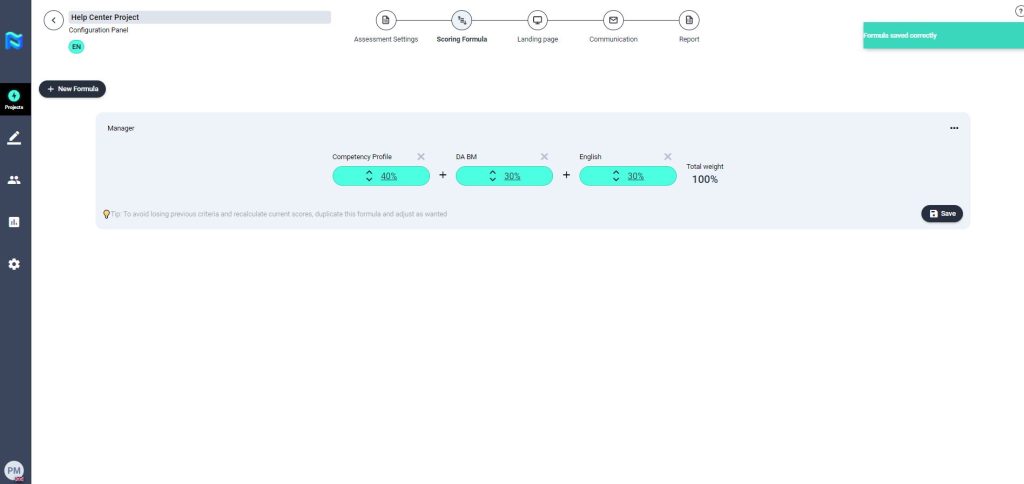
To create a new reference profile click on “+ New Formula”. You can then can add the different components that you want that formula to be composed of. To do so, click on “+Add component”. Once this is done, a modal will be opened where you can select the variables you want to be part of the formula.
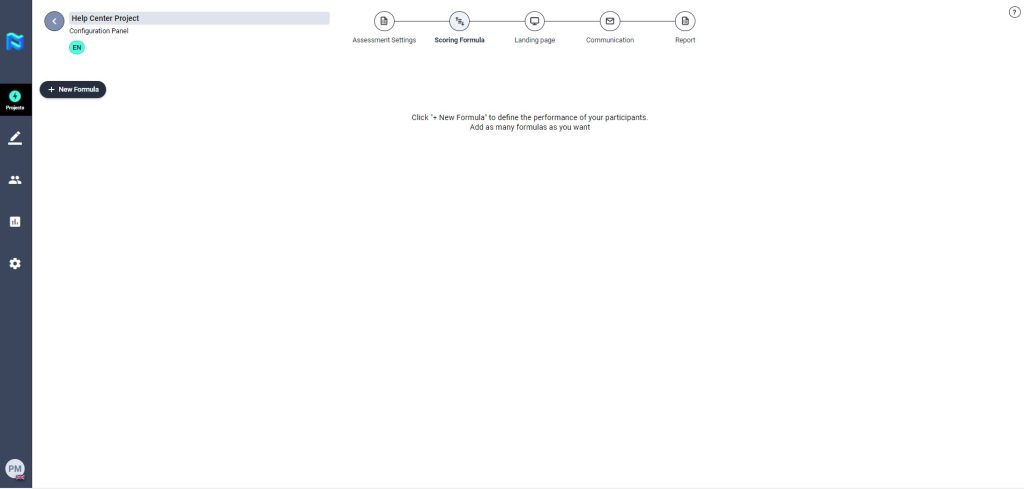
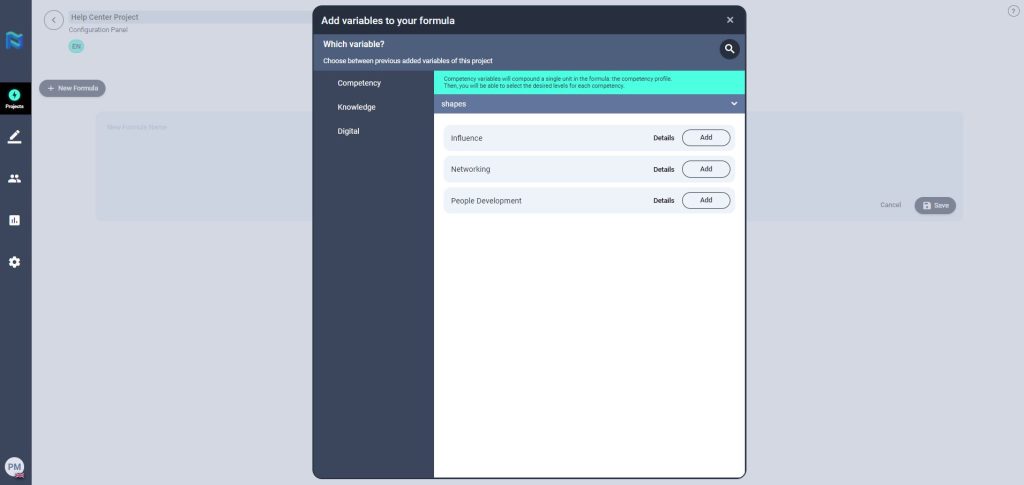
In this step of the project, you will create all those formulas (Reference profile) with which you want to measure and evaluate the project you are creating, choosing to do so, which variables you want to weigh, and what percentage.
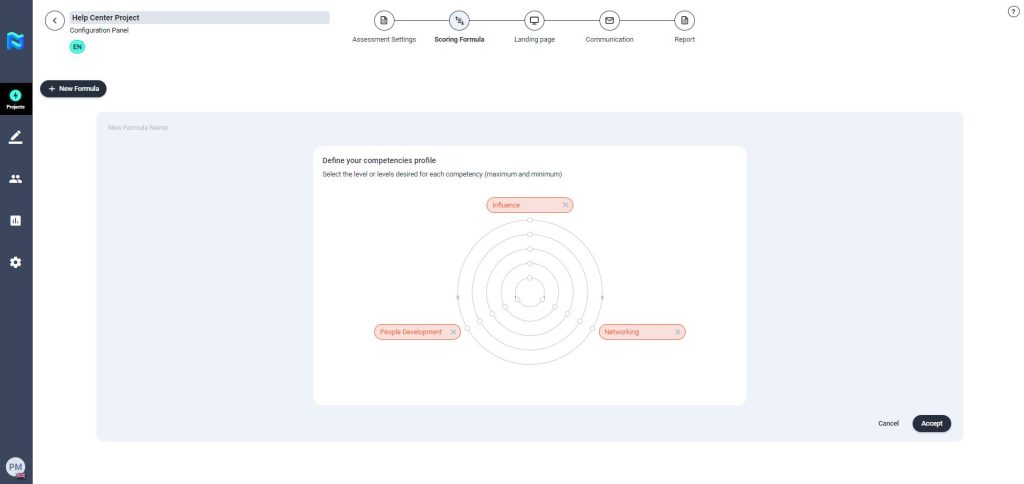
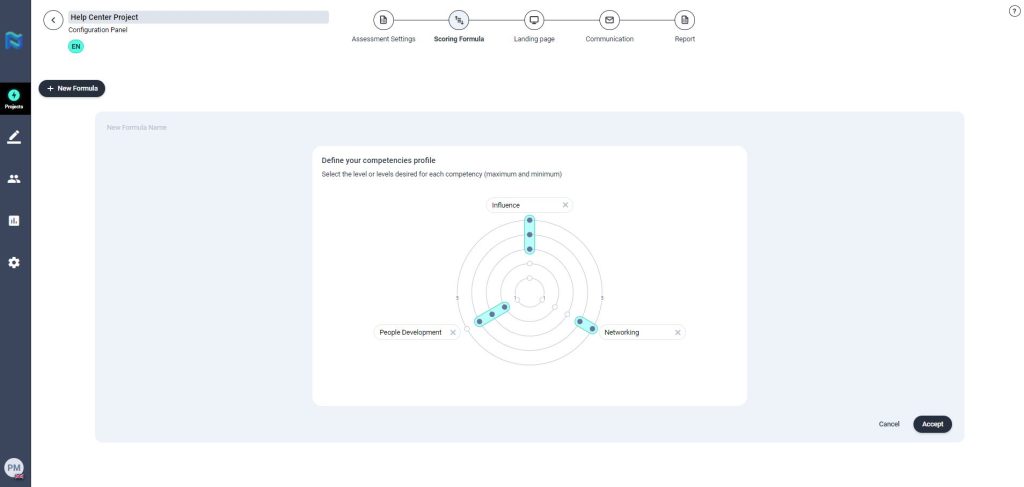
If the variable chosen is one or several competencies, we must select the reference profile that we want to evaluate. Once the formula is created, we only have to click on “Competency profile” and select the desired maximum and minimum level for each competency.
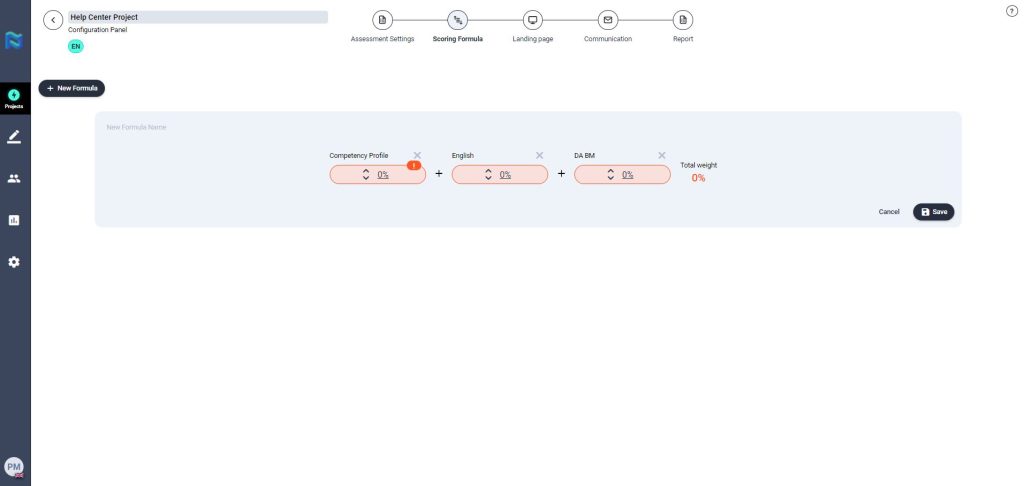
Remember that to save an evaluation formula it must have a name, otherwise, the formula will not be saved in the project. Additionally, you must ensure that the variables in the formula add up to 100% or the project will not save.
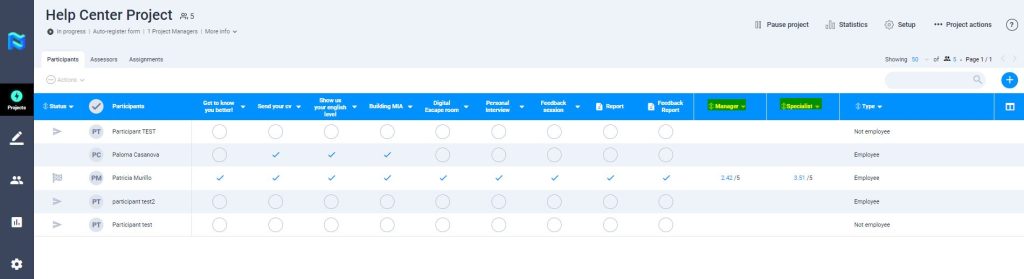
NOTE: In the main table of participants, you will see as many formulas’ results as the formulas you have created. You can also order the participants by their scores from each formula.